
AI Mode
AI Mode is what makes Termo a terminal built for agents. It tracks Claude Code, Codex, Gemini CLI, Copilot CLI and Grok in their tabs: it knows whether each one is working, waiting on your answer or finished, and it notifies you.
The agents are each provider's official CLIs, with your same account. Termo does not replace them: it opens them in a tab and watches them.
Turn AI Mode on or off
It comes turned on. Change it in Preferences → AI Mode → Turn on AI Mode, or with Turn on AI Mode / Turn off AI Mode in the palette.
Off, Termo is just a terminal: the states bar, the agents, the extensions and the agent options under + go away.
Open an agent
- Click the ˅ arrow next to a tile's + and pick the agent, or use its shortcut.
- In the Open … dialog, choose In this folder or In another folder…
- The agent starts in a new tab.
| Agent | Windows and Linux | macOS |
|---|---|---|
| Claude Code | Ctrl+Shift+L |
⌘⇧L |
| Codex | Ctrl+Shift+X |
⌘⇧X |
| Gemini CLI | Ctrl+Shift+J |
⌘⇧J |
| Copilot CLI | Ctrl+Shift+O |
⌘⇧O |
| Grok | Ctrl+Shift+K |
⌘⇧K |
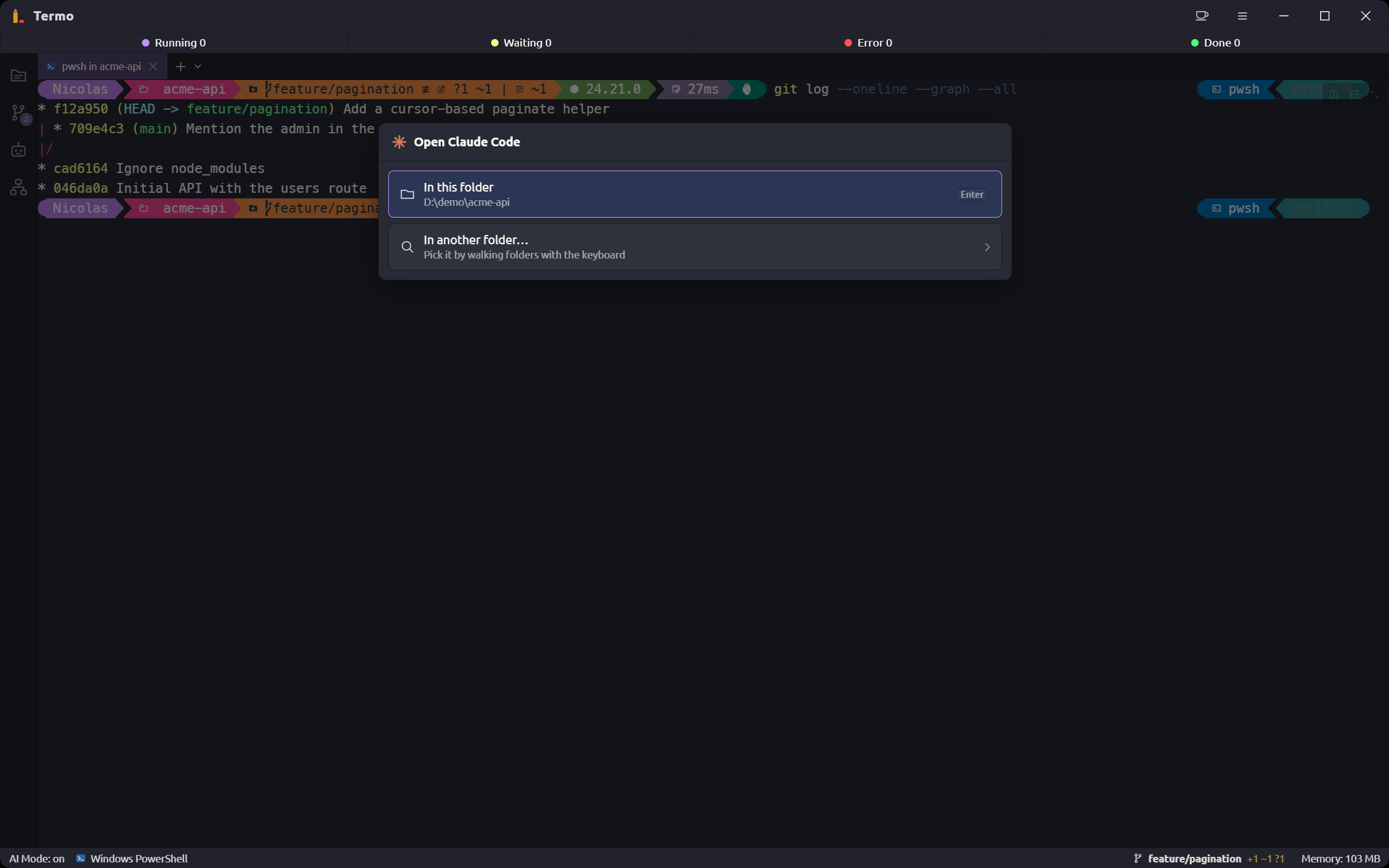
In another folder… opens a picker driven from the keyboard: the arrow keys move, Enter opens a folder and typing jumps to a name. Your recent folders and New folder are there too.
You can also type claude, codex or any agent's command in an ordinary console: Termo detects it just the same.
Install an agent
An agent that is not installed shows in the menu as not installed. To install it:
- Open Preferences and go to that agent's section, under AI Mode.
- Click Install.
- Choose where: npm's global folder (default) or another folder.
- Termo shows the command it will run. Click Install.
- When it finishes, it offers to set up the hooks.
Agents are installed with npm, so you need Node.js. The first time you open the agent's tab, it asks you to sign in.
If you change your version of Node.js, installed agents may stop showing up, because npm keeps what is installed with each version apart. Termo notices on launch and offers to reinstall them. Your sessions and settings are left alone.
An agent's states
Each tab with an agent shows a colored dot with its state:
| State | What it means |
|---|---|
| Running | It is working |
| Waiting | It needs your answer or a permission |
| Error | It finished with an error |
| Done | It finished |
The AI Mode bar, at the top of the window, counts how many tabs are in each state.
- Click a state, or press
Ctrl+1toCtrl+4(⌘1to⌘4), to see its tabs and jump to one. Ctrl+Shift+A(⌘⇧A) takes you to the next pending session, without opening any list.
Hooks: precise detection
Without hooks, Termo infers the state by watching what the agent prints on screen. With hooks, the agent itself reports its exact state: asking for permission, working, done. Notifications arrive at the right moment.
To install them:
- Open Preferences and go to the agent's section.
- Under Precise detection with hooks, click Install.
Hooks are added to the agent's settings file. Before the first change, Termo saves a copy of the file. Outside Termo they do nothing, and Remove takes them out.
The initial setup wizard installs them for every agent it finds.
Notifications and sounds
Termo notifies you about your agents when their console is not in view: when Termo is not focused, or when that tab is hidden. On Windows, clicking a notification brings Termo forward on the tab that needs you.
In Preferences → AI Mode → Notifications:
- Notify when it needs your input
- Notify when it finishes
- Notify errors
- Pending count on the app icon
- Volume of the sounds
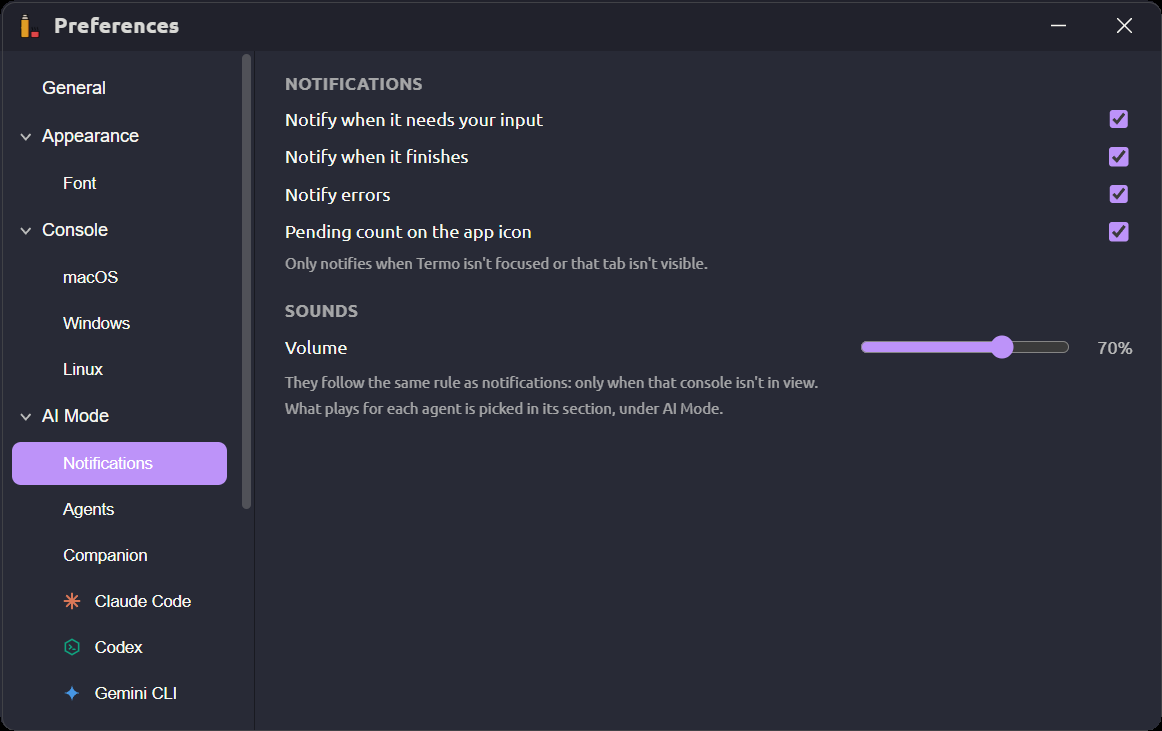
Each agent's sound is picked in its own section: one for When it needs your input and another for When it finishes. That way you can tell which agent is calling you without looking.
Plan usage, context and cost
With an agent in the active console, the status bar shows:
- Plan usage: what share of the limit you have already used, in each window the agent reports (the 5-hour and the weekly one, for instance).
- Context: how much of the model's context window the conversation takes up.
- Cost: what the session has spent so far, in Claude Code.
What each agent shows and what it needs:
| Agent | Plan usage | Context | What to install |
|---|---|---|---|
| Claude Code | Yes, with a Pro or Max subscription | Yes | Plan limits and context, in its section |
| Codex | Yes | Yes | The hooks |
| Copilot CLI | Yes, read from GitHub | Yes | Context, in its section; the plan needs gh auth login |
| Grok | No | Yes | The hooks |
| Gemini CLI | No | No | Nothing: it does not report this data |
In Claude Code and Copilot CLI, Termo chains onto the agent's status line without replacing yours.
Favorites
A favorite saves an agent's conversation so you can open it again.
- Right-click the agent's console → Add to favorites..., or press
Ctrl+Shift+F(⌘⇧F). - Give it a name (optional) and click Save.
Open them from each tile's ˅ arrow → Favorites, from the ≡ menu → Favorites, or from the palette. Manage favorites... lets you rename them (F2) and remove them (Delete).
Resume a session
Your agents' recent conversations are under the ˅ arrow → Recent, and in the palette as Resume session: …. Pick one and a tab opens with the agent and that conversation.
To open several again at once, save a layout with Also save the AI sessions.
Your agents from consoles
The agents you create in Termo can be used from Claude Code, Codex, Gemini CLI and Copilot CLI consoles: you ask your agent for something and wait for its answer without leaving the conversation. It is explained in Local agents.