Command palette and shortcuts
Termo can be driven entirely from the keyboard. The command palette runs any feature by name, and the most used ones have their own shortcut.
The command palette
- Press
Ctrl+Shift+P(⌘⇧Pon macOS). - Type part of what you want to do.
- Choose with the arrow keys and press
Enter.
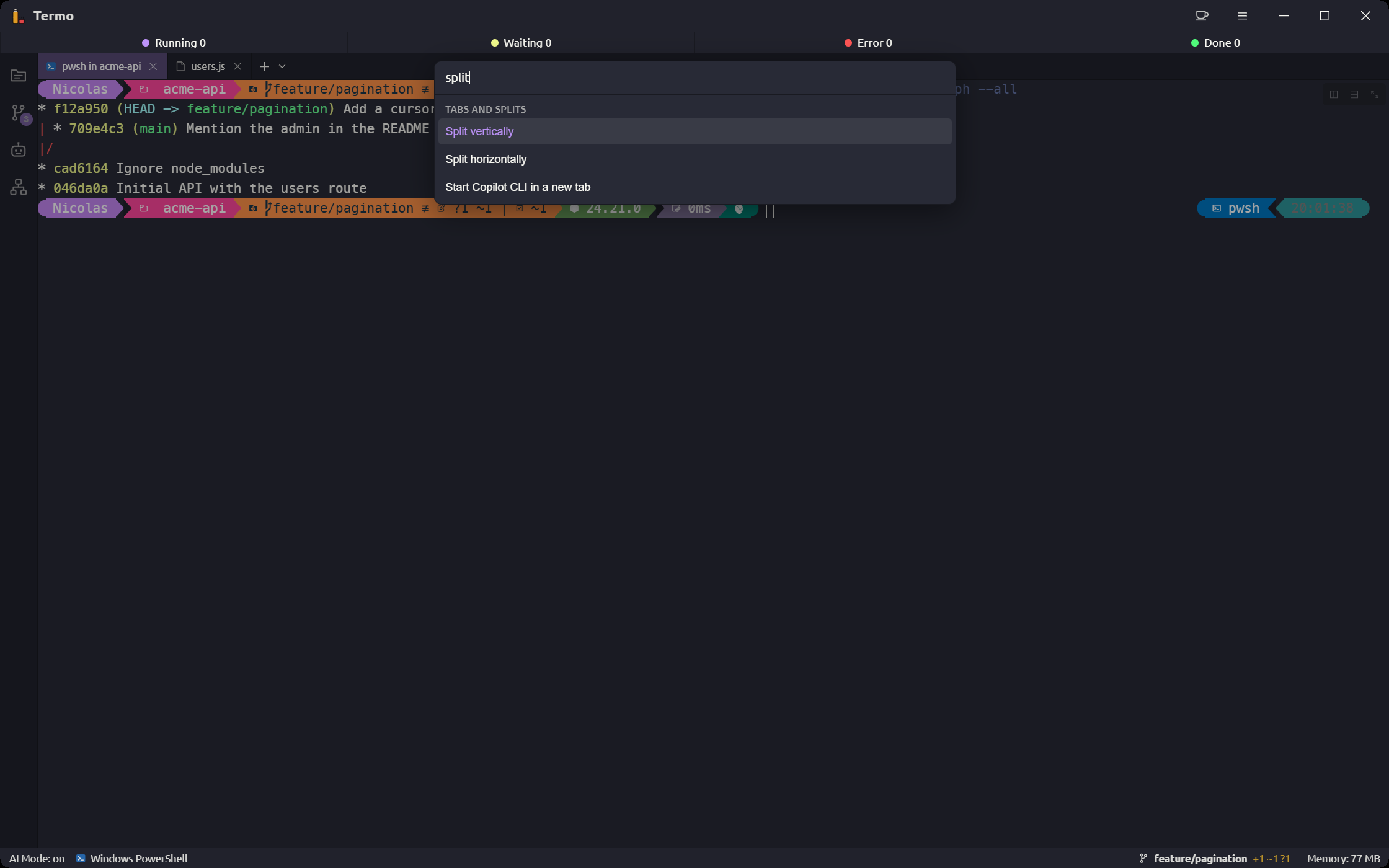
Commands are grouped:
| Group | What you find |
|---|---|
| Go to | Preferences, the tile picker, the side panels, any tab by its title |
| Tabs and splits | New tab, close, split, zoom the tile |
| Layouts | Save, restore, delete and manage layouts |
| Appearance | Change the theme, the language, the blur and output highlighting |
| Git | Commit, fetch, pull, push, sync, see the graph, review with an agent |
| AI Mode | Turn it on, open an agent, favorites, resume a session, go to the next pending one |
| Agents | Create an agent, and run or edit each of yours; show the kanban boards, create one, open each board or add a task to it |
| Extensions | Open extensions |
The list changes with what you have: there is one command for each saved layout, each favorite, each theme, each agent and each kanban board.
A command that also has a shortcut shows it on the right, with your current combination. While you move with the arrow keys, the list scrolls to keep the highlighted command in view.
Every shortcut
These are the default shortcuts, in the same groups as Preferences → Shortcuts.
Tabs and windows
| Action | Windows and Linux | macOS |
|---|---|---|
| New window | Ctrl+Shift+N |
⌘N |
| New tab | Ctrl+T |
⌘T |
| New tab menu (more options) | Ctrl+Shift+T |
⌘⇧T |
Cycle tabs (with Shift, backwards) |
Ctrl+Tab |
⌃Tab |
| Zoom the tile | Alt+↑ |
⌘↑ |
| Restore the tile, or open the tile picker | Alt+↓ |
⌘↓ |
| Add the current tab to favorites | Ctrl+Shift+F |
⌘⇧F |
New agent tab
| Action | Windows and Linux | macOS |
|---|---|---|
| New Claude Code tab | Ctrl+Shift+L |
⌘⇧L |
| New Codex tab | Ctrl+Shift+X |
⌘⇧X |
| New Gemini CLI tab | Ctrl+Shift+J |
⌘⇧J |
| New Copilot CLI tab | Ctrl+Shift+O |
⌘⇧O |
| New Grok tab | Ctrl+Shift+K |
⌘⇧K |
Panels and tools
| Action | Windows and Linux | macOS |
|---|---|---|
| Command palette | Ctrl+Shift+P |
⌘⇧P |
| File explorer | Ctrl+Shift+B |
⌘⇧B |
| Git panel | Ctrl+Shift+S |
⌘⇧S |
| Agent Harness panel | Ctrl+Shift+W |
⌘⇧W |
| Tab groups | Ctrl+Shift+Q |
⌘⇧Q |
| Kanban boards | Ctrl+Shift+U |
⌘⇧U |
| New task on a kanban board | Alt+Shift+N |
⌘⌥N |
| Local agents | Ctrl+Shift+G |
⌘⇧G |
| Orchestration agents | Ctrl+Shift+R |
⌘⇧R |
| Extensions | Ctrl+Shift+M |
⌘⇧M |
| Diagnostics | Ctrl+Shift+D |
⌘⇧D |
| AI Companion | Ctrl+Shift+Y |
⌘⇧Y |
| Quick question | Ctrl+Shift+H |
⌘⇧H |
Editing
| Action | Windows and Linux | macOS |
|---|---|---|
| Copy | Ctrl+Shift+C |
⌘C |
| Paste | Ctrl+Shift+V |
⌘V |
| Select all | Ctrl+Shift+E |
⌘A |
AI Mode
| Action | Windows and Linux | macOS |
|---|---|---|
| AI Mode: Running | Ctrl+1 |
⌘1 |
| AI Mode: Waiting | Ctrl+2 |
⌘2 |
| AI Mode: Error | Ctrl+3 |
⌘3 |
| AI Mode: Done | Ctrl+4 |
⌘4 |
| AI Mode: next pending | Ctrl+Shift+A |
⌘⇧A |
Change a shortcut
- Open Preferences → Shortcuts. Every shortcut is listed there, grouped as above.
- To find one, type in Search shortcuts.... It matches the action's name, ignoring accents and case, and also the key combination:
shiftorctrl+tfind the shortcuts that use them, and on macOS so docmdoroption. - Click the shortcut you want to change. Press a key combination... appears.
- Press the new combination.
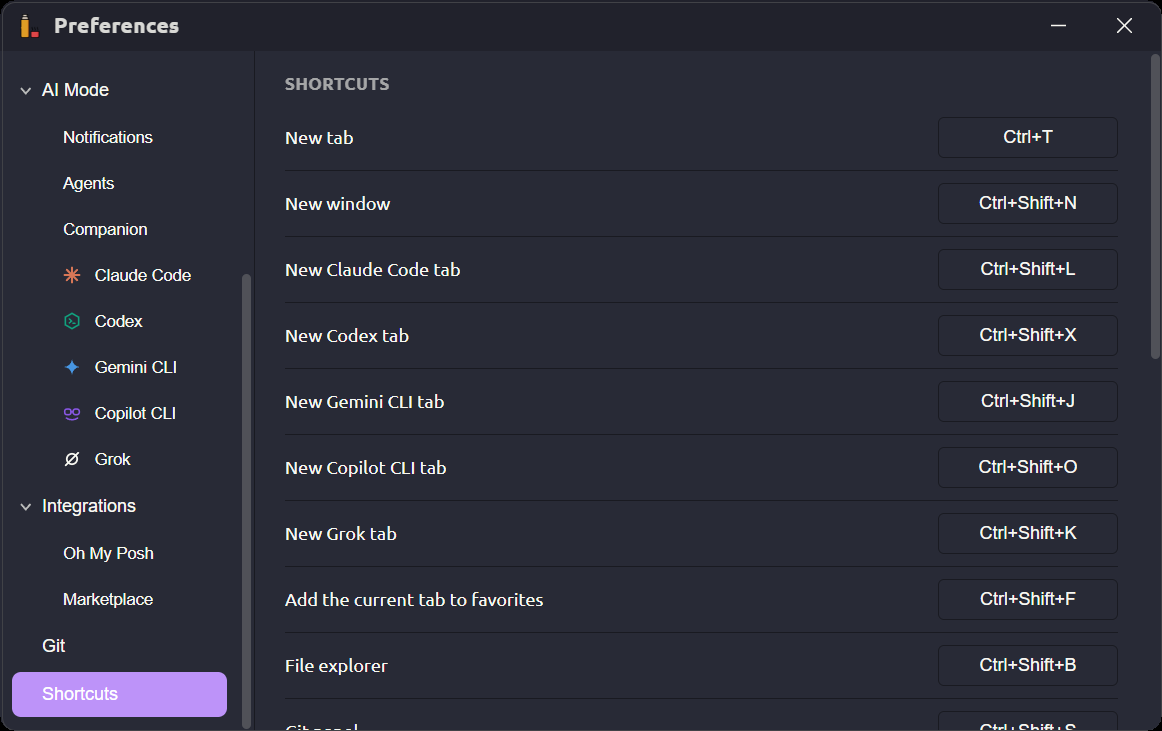
A few rules:
- If another action already uses that combination, Termo tells you and does not save it.
- A key that types a character needs at least one modifier (
Ctrl,Alt,Shiftor⌘). - The zoom shortcut is recorded with an
↑or↓arrow and at least one modifier. The same combination serves both directions. - reset puts a shortcut back to its default.
The shortcut names you see in the app's menus and hints always show your current combination.
Menus from the keyboard
Every menu in Termo (the ≡ menu, the tab's ˅ menu, right-click menus) works from the keyboard:
↑and↓move between items,HomeandEndjump to the first and last, and a letter jumps to the next item that starts with it.Enterpicks the item, or ticks a checkbox.→opens a submenu and←goes back from it.Esccloses the menu and returns to the console.