
Tabs, tiles and layouts
The Termo window splits into tiles, and each tile has its own tabs. A layout is a snapshot of that arrangement, which you can save and open again.
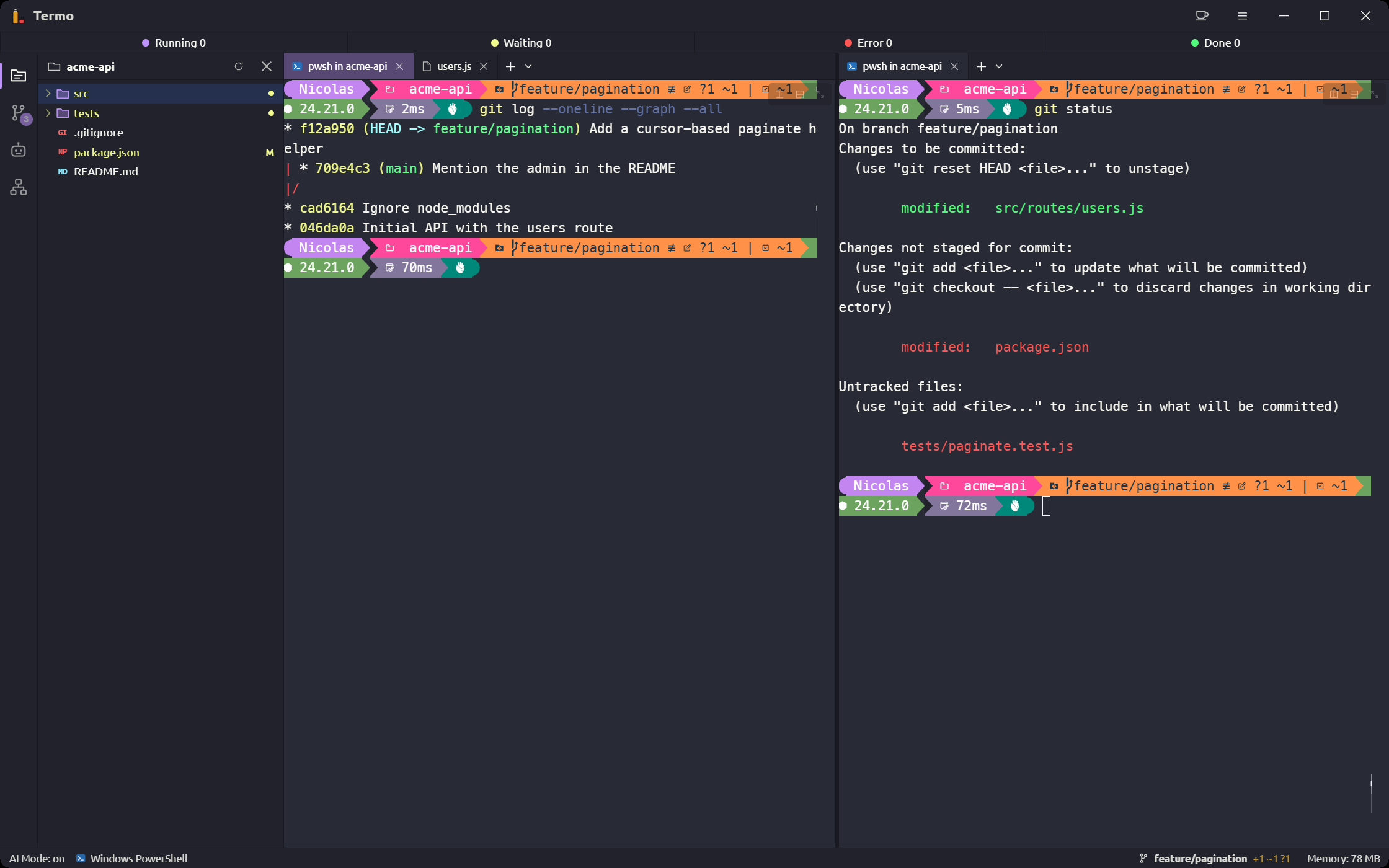
Tabs
Open and close
- Open: click + or press
Ctrl+T(⌘Ton macOS). The ˅ arrow beside it, orCtrl+Shift+T(⌘⇧Ton macOS), lets you pick another console, an agent, a favorite or a recent session. In that menu,Shift+Enteron a console asks which folder to open it in. - Close: click the tab's ×, click it with the mouse wheel (middle button), or right-click it → Close tab.
If a tab has something running and you close the window or quit Termo, you are told first how many consoles and AI sessions will be closed.
Move between tabs
Ctrl+Tabgoes to the tile's next tab;Ctrl+Shift+Tab, to the previous one.- In the command palette, Go to tab: … jumps to any tab in the window by its title.
Reorder and move
Drag a tab to change its place within its tile. Drop it on another tile and it moves there; drop it on an edge and it creates a New pane on that side. Right-clicking a tab does the same with Split right, Split left and Split down.
Group tabs
Tabs can be gathered under a name and a color, behind a chip at the head of the bar, folded away, moved together and opened again after they were closed. See Tab groups.
Tabs that fill the width
With Preferences → Appearance → Tabs fill the whole width, each tile's tabs share the bar's whole width. With many tabs, the bar scrolls.
Tiles
Split
Rest the mouse on a tab's title for a moment and the tile's buttons open out next to it (the tab grows to fit them, and the others make room). They stay while the mouse is on the tab, and fold back when it leaves. The X that closes the tab doesn't open them.
- Split vertically: the new tile goes beside it, with a new console.
- Split horizontally: the new tile goes below.
- Zoom tab: see below.
The same commands are in the palette. To resize, drag the line between two tiles.
Zoom a tile
Alt+↑ (⌘↑ on macOS) makes the focused tile take the whole window. Alt+↓ (⌘↓) puts it back. Zoom tab, among the buttons on a tab's title, does the same and shows that tab; once zoomed, the same button is Restore tab.
Jump between tiles
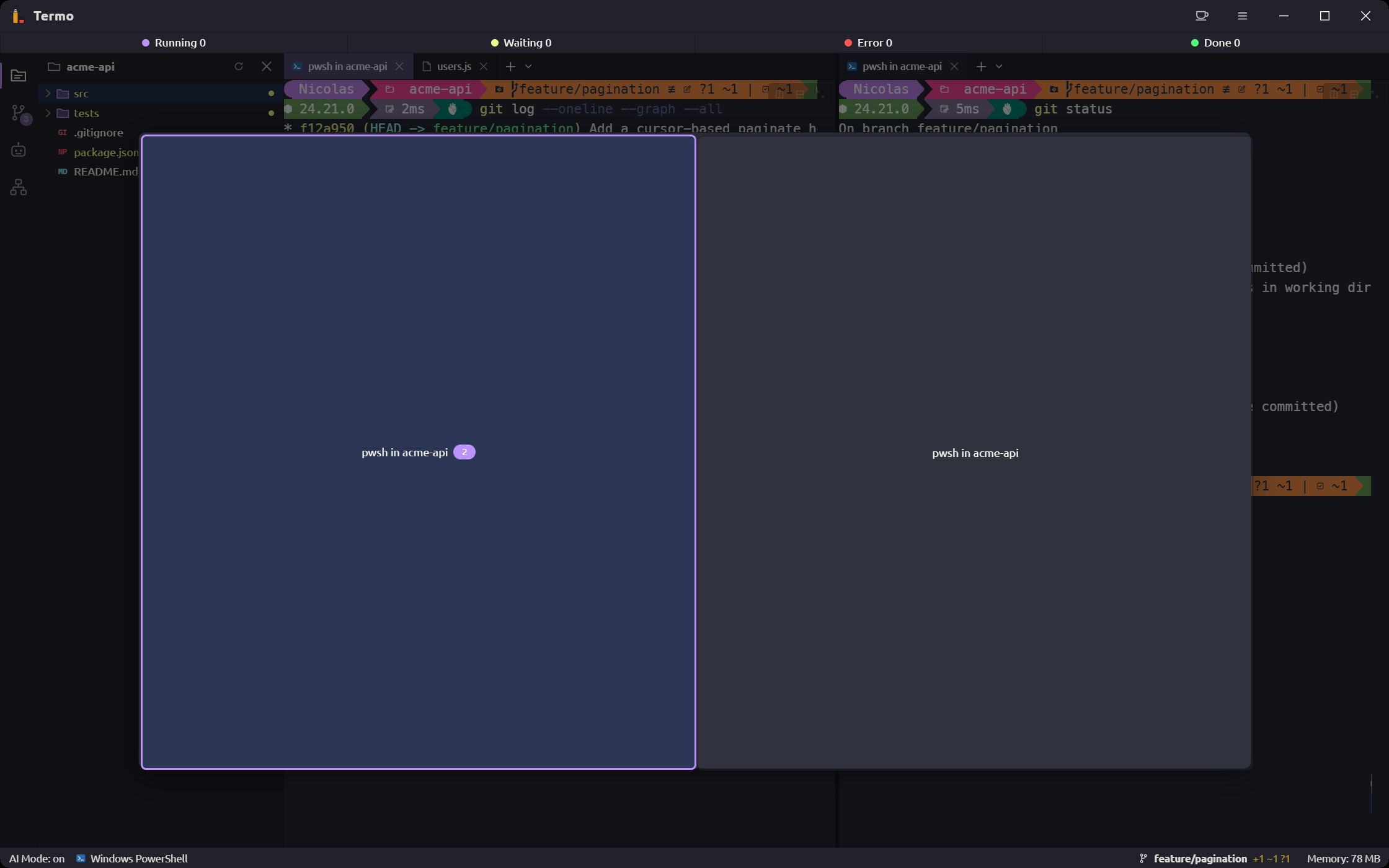
When no tile is zoomed, Alt+↓ (⌘↓ on macOS) opens the tile picker: a map of the window with every tile.
- Choose a tile with the arrow keys.
- Press
Enterto go in.
Layouts
A layout saves the open consoles, what type each one is, how they are split and which tab group each one is in.
Save a layout
- Arrange the window the way you want to save it.
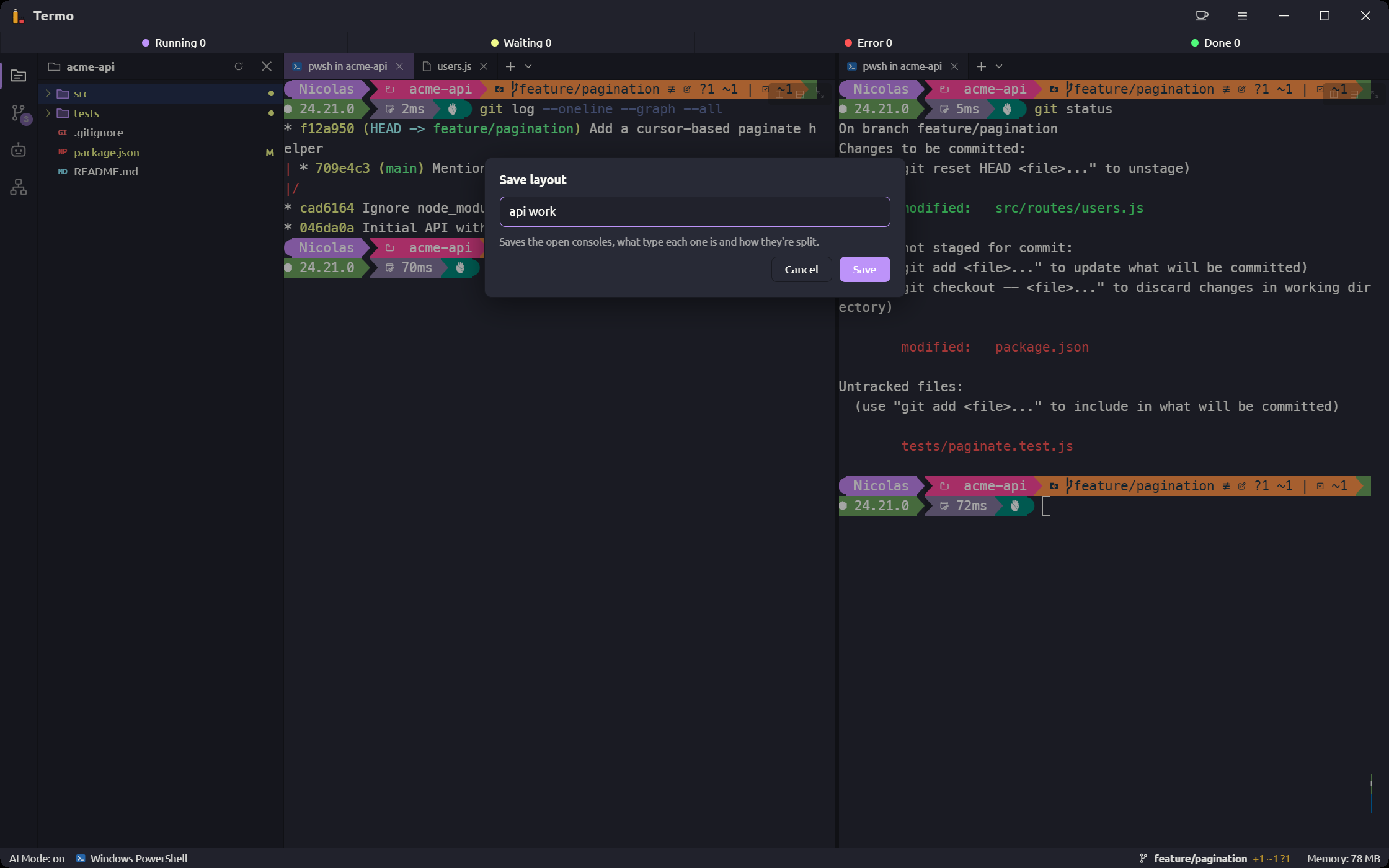
- Open the ≡ menu → Save layout...
- Type a name. If a layout with that name already exists, it is replaced.
- If agent sessions are open, you can tick Also save the AI sessions: on restore, each console resumes its conversation.
- Click Save.
Restore a layout
Open the ≡ menu → Restore layout and pick one. You can also type Restore layout: … in the palette.
Restoring closes the open consoles and the processes running in them. Termo asks you to confirm first.
Manage layouts
The ≡ menu → Manage layouts... shows every saved one. Double-click restores one; Delete removes the selected one.
Always open with a layout
In Preferences → General → Startup → Layout on launch, pick a layout. On launch, Termo opens it instead of a single console.
More than one window
Ctrl+Shift+N (⌘N on macOS) opens another Termo window, with its own tiles and tabs. It is also in the ≡ menu → New window.