
Extensions
Extensions add capabilities to your agents. Termo searches several marketplaces for them and installs them into each agent with its own command, without you editing any settings file.
They need AI Mode on.
What kinds there are
| Kind | What it is | Where it installs |
|---|---|---|
| Plugins | Claude Code packages | Claude Code only |
| MCP servers | Servers that connect the agent to other services (GitHub, databases, Slack…) | Claude Code, Codex, Gemini CLI, Copilot CLI and Grok |
| Skills | Packaged instructions for a kind of task | The agents that support them |
Open extensions
Press Ctrl+Shift+M (⌘⇧M on macOS), or open the ≡ menu → Extensions...
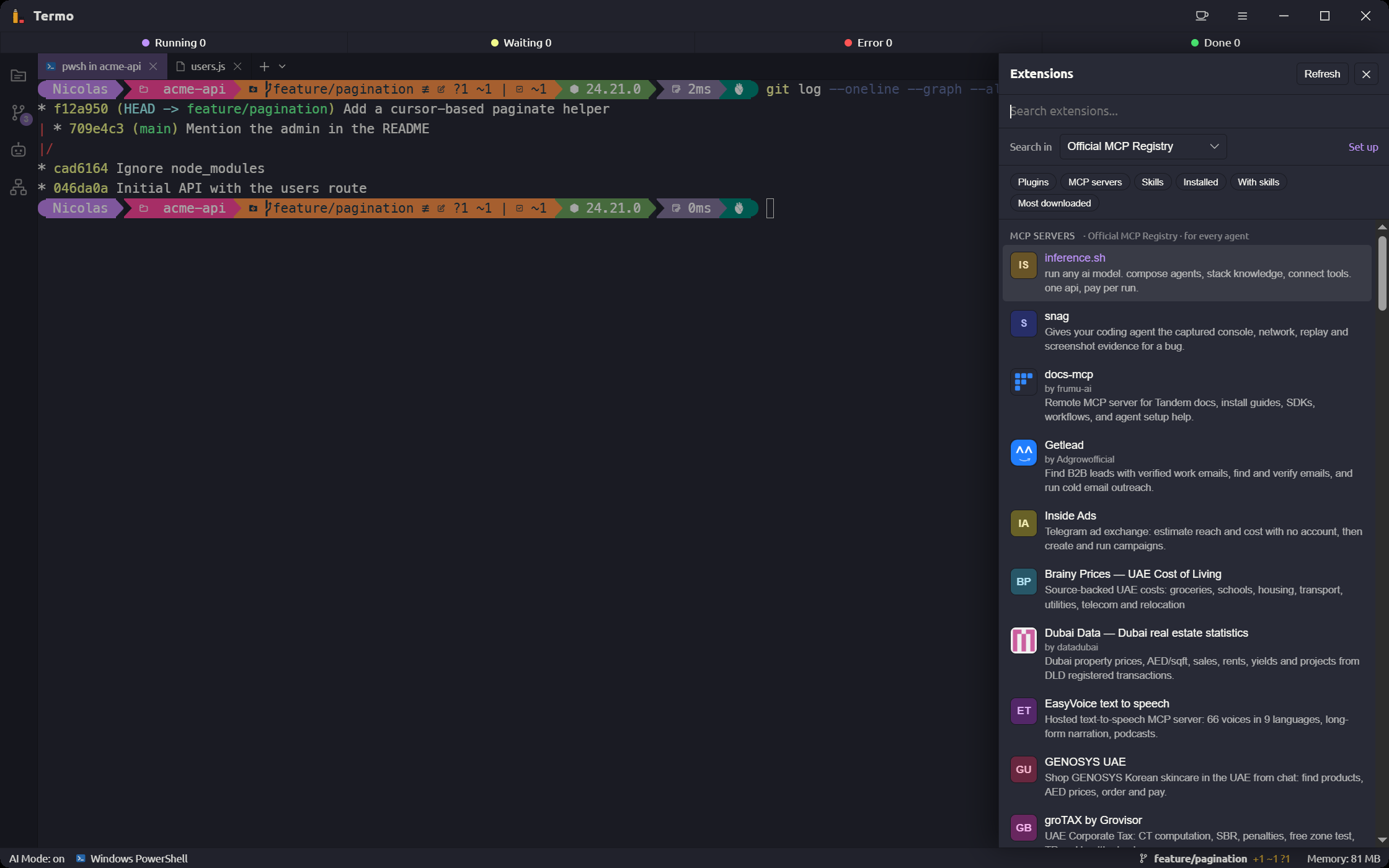
Search
Type in Search extensions... and the results show grouped by kind.
- Installed shows only what you already have.
- With skills shows only what includes skills.
- The order switches between Most downloaded and Most relevant.
- Search in chooses which marketplace MCP servers are searched in.
Some results carry badges: Verified, Remote or Local, and the security scan's result when the marketplace reports one.
Install an extension
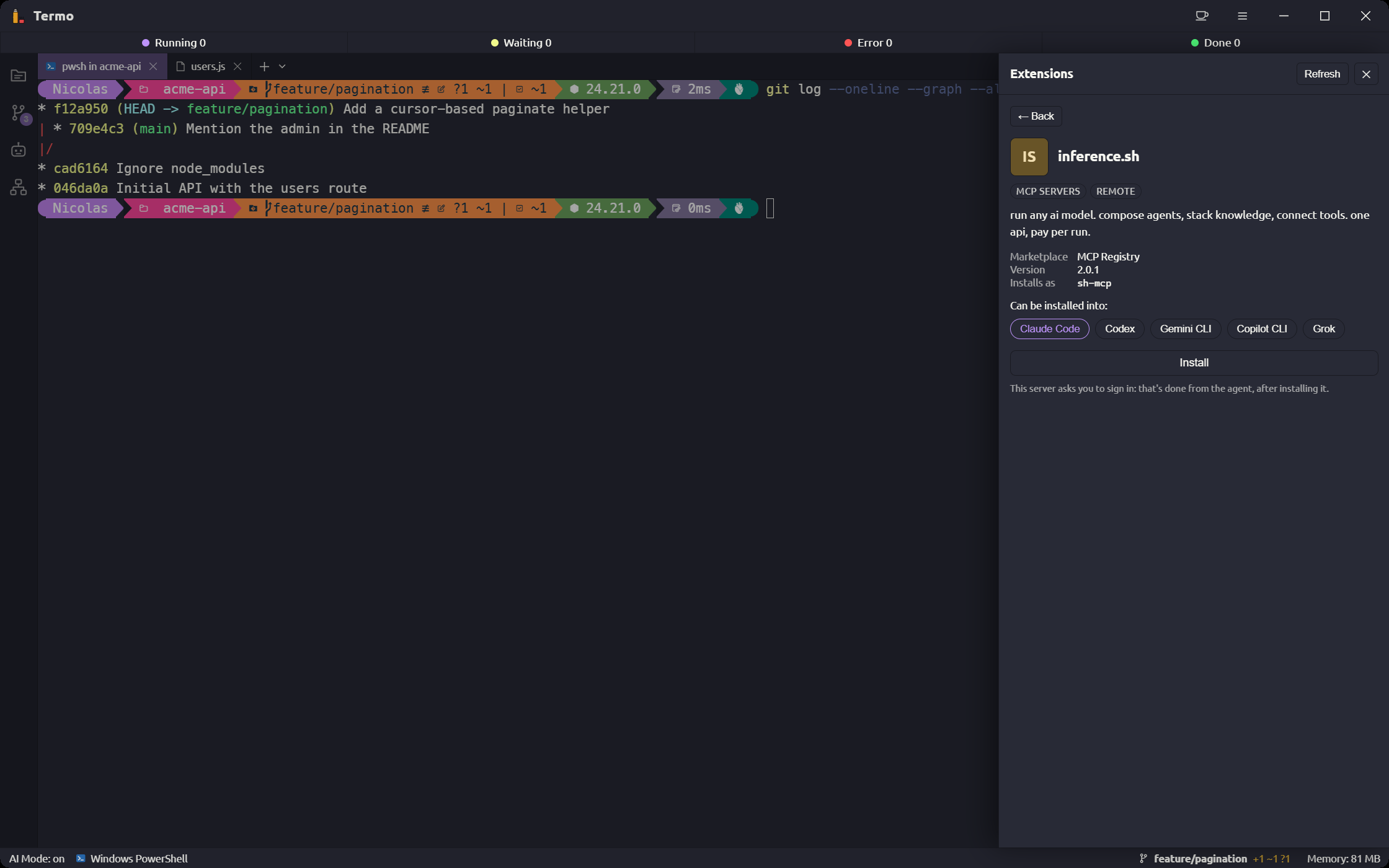
- Click a result to see its details: author, version, installs, where the code comes from and the tools it brings.
- Under Can be installed into:, choose the agents.
- If the server asks for them, fill in the Connection parameters.
- Click Install. Termo shows you exactly what it will run or configure.
- Confirm with Install now.
Installing downloads and runs third-party code on your machine. Check where it comes from before confirming. If a marketplace asks to run a command, Termo shows it to you and only runs that exact text after you approve it.
If it asks you to sign in
Some servers need you to sign in. That is done from the agent, after installing:
| Agent | How |
|---|---|
| Claude Code | Type /mcp and pick the server |
| Codex | In a console, codex mcp login <name> |
| Gemini CLI | /mcp auth <name> |
| Copilot CLI | It asks the first time it uses it |
| Grok | Type /mcps and sign in |
Servers that do not install from Termo
Some servers run on your computer and only install with their marketplace's own tool. In that case Termo says so and takes you to its page.
Uninstall
Open an installed extension's details and click Uninstall.
Choose the marketplaces
Preferences → Integrations → Marketplace holds the sources where Termo searches for MCP servers:
- Official MCP Registry: nothing to set up.
- Smithery: works without a key. With your own API key the requests go to your account.
That is where you pick the Default source. The API key is kept in the system keychain, not in the settings file, and is not shown again.
Whatever you find in any source installs the same way, into every agent.
Extensions and local agents
MCP servers can also be given to a local agent, in the Tools step of its wizard. There they are called Integrations.