Explorer and editor
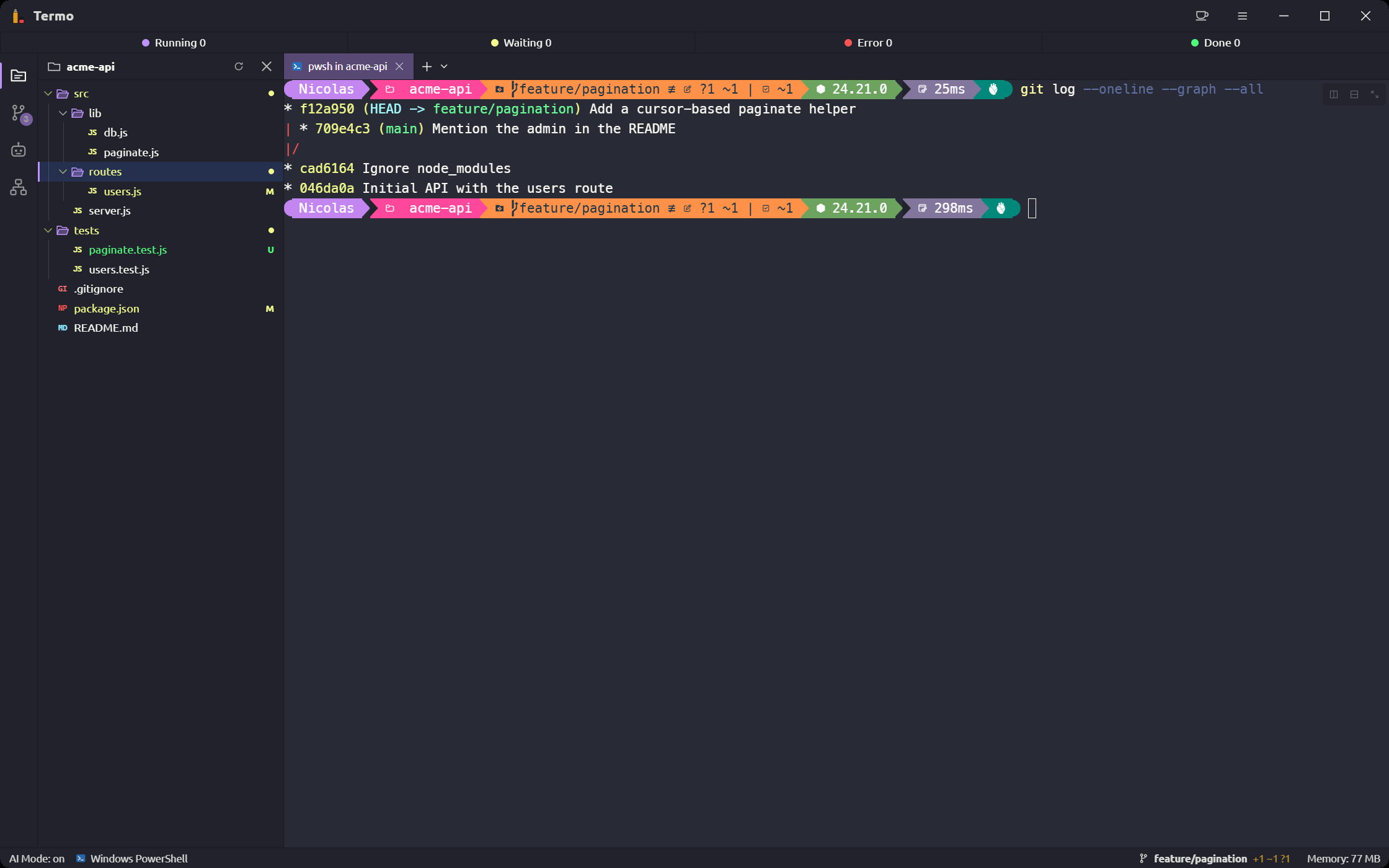
The explorer shows the files of the folder your console is in. From there you open any file in a tab and edit it.
The file explorer
Open it with Ctrl+Shift+B (⌘⇧B on macOS) or with the first button on the panels bar.
Which folder it shows
The explorer follows the active tab. If the console is inside a git repository, it shows the whole repository; if not, it shows that folder and says Not a git repository.
When you switch tabs, the tree switches with you. If a console that just opened has not yet reported which folder it is in, the explorer says so and fills in as soon as it knows.
Git marks
In a repository, each file with changes carries a colored mark:
| Mark | What it means |
|---|---|
| Modified | It has changes since the last commit |
| Added | It is staged for the commit for the first time |
| New, untracked | Git does not track it yet |
| Deleted | It was removed |
| Renamed | Its name changed |
| Conflicted | It has an unresolved conflict |
A folder carries the Contains changes mark when something inside it changed. Marks refresh on their own every few seconds, so they also reflect what an agent or a console command changes.
With the keyboard
| Key | What it does |
|---|---|
↑ ↓ |
Moves the selection |
→ |
Opens the folder, or goes into it if it is already open |
← |
Closes the folder, or goes up to the one that holds it |
Enter |
Opens the file, or opens and closes the folder |
Esc |
Gives the focus back to the console |
The Refresh button in the header reads the open folders again. To change the panel's width, drag its edge.
The editor
Click a file in the explorer (or press Enter) and it opens in a new tab of the focused tile, next to your consoles.
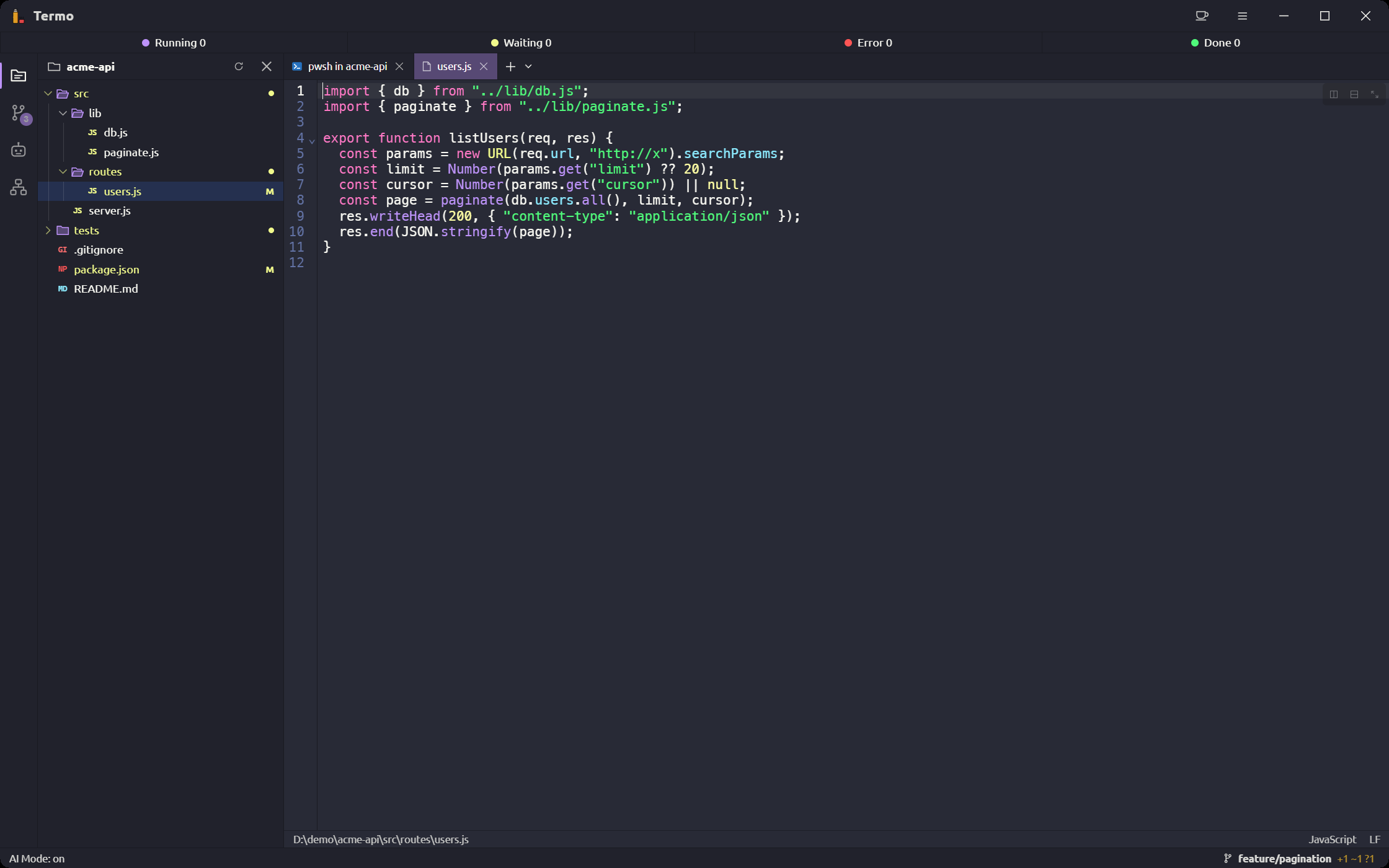
- Syntax highlighting by file type, for over a hundred languages. In Markdown, code blocks are colored in the language they name (
```ts,```rust…). What it does not recognize shows as plain text. - Save with
Ctrl+S(⌘Son macOS). - A ● dot on the tab means there are Unsaved changes.
- When you close a tab with changes, Termo asks: Save, Don't save or Cancel.
The editor uses the same theme and font as the consoles.
The toolbar
A round button floats at the top middle of the editor. Move the mouse over it and the toolbar opens out to both sides; move away and it folds back. It also opens for a moment when you change the file, and its dot means there are unsaved changes.
To keep it open, click the pin at its right end (Keep the toolbar open). Click it again (Let the toolbar close by itself) to go back to opening on hover. The choice is kept for every file.
| Button | What it does |
|---|---|
| Save | Saves the file (Ctrl+S, ⌘S on macOS). |
| Undo / Redo | Ctrl+Z / Ctrl+Y (⌘Z / ⌘⇧Z on macOS). |
| Find | Opens the search box (Ctrl+F, ⌘F on macOS). |
| Replace | Opens it with the replace field (Ctrl+H, ⌘⌥F on macOS). |
| The branch | This file in git: its branch, its state (no changes, staged, unstaged, new), the lines added and removed against the last commit, and the last commit that touched it. From there, View changes opens the file's diff and View what that commit changed opens that commit's. |
| The author icon | Show who wrote each line / Hide who wrote each line: turns the blame on and off. |
The git buttons only show for a file in a repository, with Git on in Preferences.
Find and replace
The search box floats over the top of the file. Type what you're looking for: every match is highlighted, and the box counts them (3 of 12). Text you had selected is searched for when the box opens.
Entergoes to the Next match,Shift+Enterto the Previous one;F3works too with the box closed.- Aa matches case, ab finds whole words only, .* takes a regular expression.
- The arrow at the left shows the Replace with field. Replace (or
Enterin that field) changes the current match and moves to the next; Replace all (Ctrl+Enter,⌘↩on macOS) changes every one. Both can be undone. Esccloses the box and gives the keyboard back to the file.
Who wrote each line
The editor shows who wrote each line (git blame): the author, how long ago, and the commit's message, faded next to the text. Hover over it to see the whole commit, and click it to open what that commit changed in the file, at that line. Lines you changed and haven't committed show as Not committed, or Changed, not saved if they're not saved yet.
It's on by default. In Preferences → Git → File editor, Who wrote each line (blame) chooses how it shows:
- On the cursor's line: at the end of the line the cursor is on.
- On every line, in a column: in a column left of the line numbers, once for each run of lines from the same commit.
- Don't show.
Include the commit message adds the message to the author and date.
See a file's changes
To compare a file with its previous version, use the Git panel: clicking a file under Changes opens its diff. It is explained in Git. From the editor, the toolbar's View changes does the same for the file that's open.