Appearance
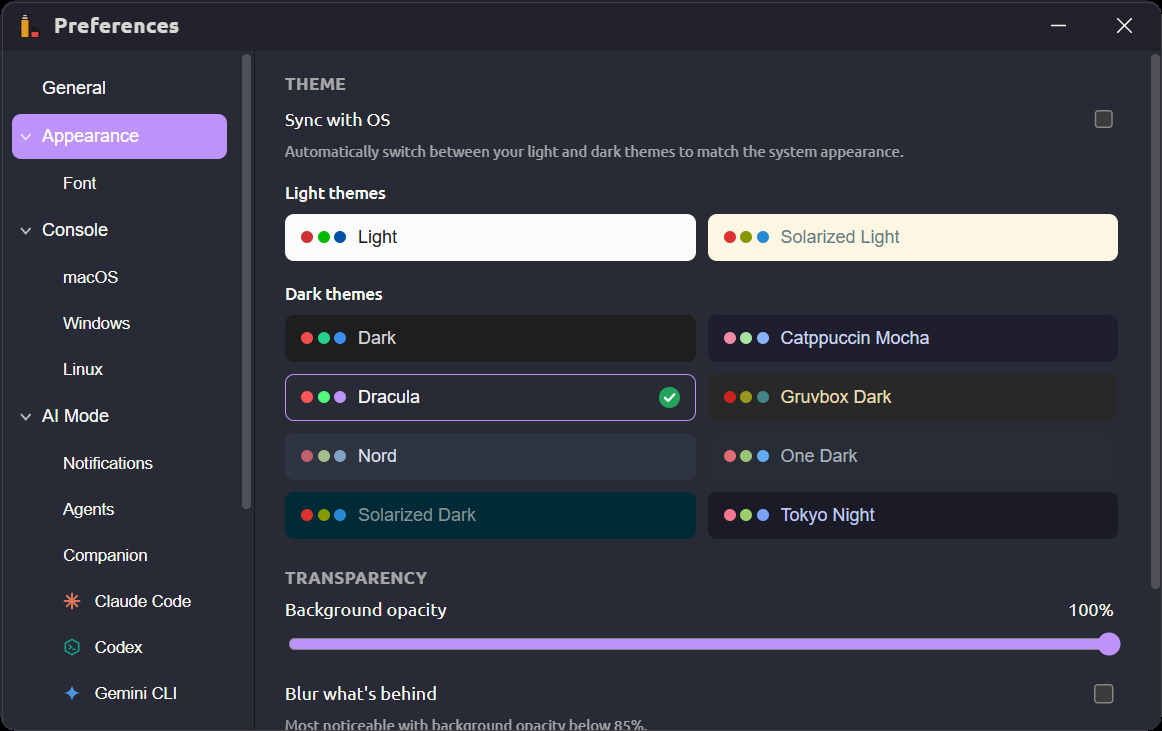
Everything that changes how Termo looks is in Preferences → Appearance and its pages Themes and Font. Changes apply right away, to the consoles and the whole window.
Themes
Termo ships with thirty-one themes:
| Dark | Light |
|---|---|
| Dark, Catppuccin Mocha, Dracula, Everforest Dark, GitHub Dark, Gruvbox Dark, Kanagawa, Monokai, Night Owl, Nord, One Dark, Rosé Pine, Solarized Dark, Tokyo Night | Light, Catppuccin Latte, GitHub Light, Gruvbox Light, One Light, Rosé Pine Dawn, Solarized Light |
| Colorful: Neon Night, Tropical, Aurora, Sunset | Colorful: Candy, Lime Pop |
| Retro: Amber CRT, Phosphor, Hacker, Arcade |
The colorful and retro themes are Termo's own. Besides the console's colors, they paint the title bar, the tab strips and the status bar with gradients, give each tab a color of its own, and light up the edges of the tile you're working in. Amber CRT and Phosphor are an old monitor's single color of light; Hacker, green on pure black, with every detail in green (errors still show in red); Arcade, an arcade cabinet's bright primaries.
To change the theme:
- Open Preferences → Appearance → Themes.
- Click the one you want. Each theme shows as a small Termo window in its colors: title bar, tabs, a few lines of console and the status bar.
The buttons along the top narrow the list: All (grouped into Colorful, Retro and Classic), Dark, Light, Colorful or Retro.
You can also type Theme: … in the command palette.
Follow the system appearance
With Sync with OS, Termo switches on its own between a light theme and a dark one to match your operating system. Click a light theme and a dark one to choose which to use in each case: both stay marked.
Transparency
In Preferences → Appearance, under Transparency:
- Background opacity: lower it to see what is behind the window.
- Blur what's behind: blurs the background. It is most noticeable with the opacity below 85%. Not available on Linux.
Tabs
Tabs fill the whole width makes each tile's tabs share their bar's whole width.
Colored tabs gives each tab a color: a tint, a line along its bottom and its icon in that color, brighter on the active tab. A new tab takes the next color in turn and keeps it.
- As the theme says (the default): only with the colorful and retro themes, which bring their own tab colors.
- Always: with any theme, using its console's colors.
- Never: plain tabs, even with a colorful theme.
A tab in a tab group takes its group's color.
Font
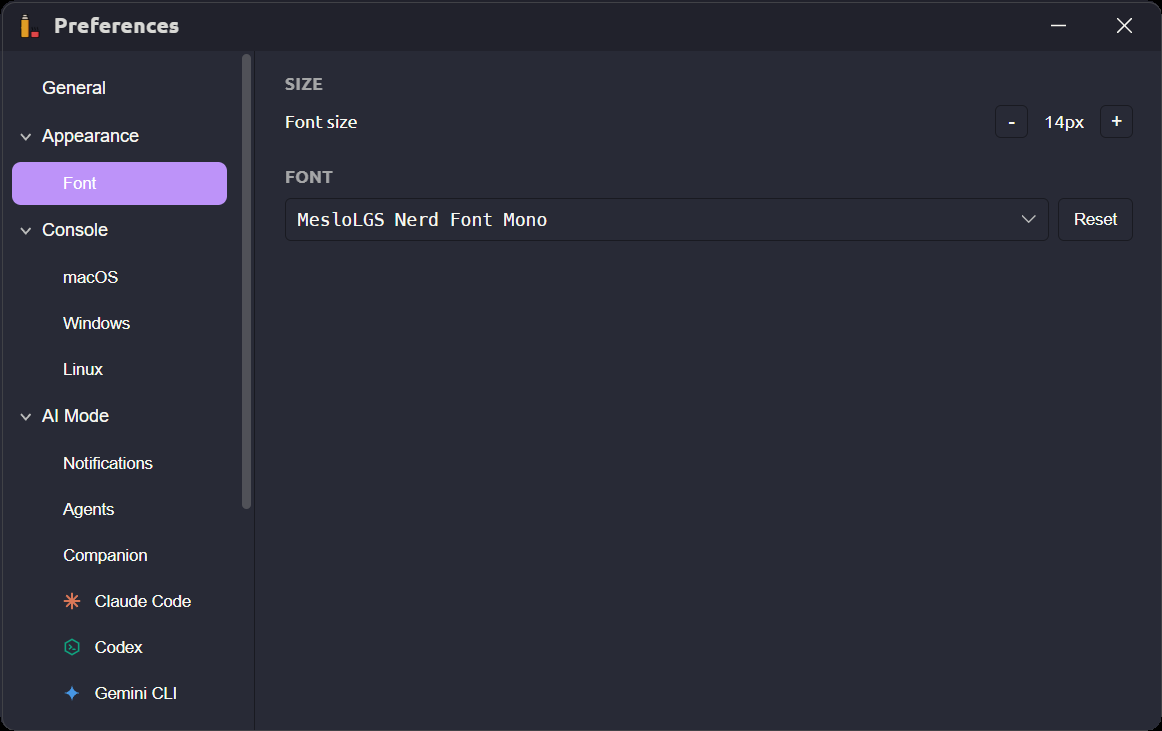
In Preferences → Appearance → Font:
- Size: use the buttons to increase or decrease it, or Reset to go back to the original size.
- Font: search for one by name and pick it. Google Fonts fonts install themselves when you pick them.
Some fonts carry a badge saying a Nerd Font version of them exists, with icons. Those are the ones you need for Oh My Posh and Starship themes.
Language
In Preferences → General → Language you choose System, Español or English. "System" uses your operating system's language.