
Orchestration
Orchestration is for a piece of development that is too big for a single agent. You describe what you want to build and an orchestrator designs the team: it hands the tasks to Claude Code, Codex, Gemini CLI, Copilot CLI or Grok agents, each with its own model.
You see the plan and its cost before it starts. Nothing runs until you approve it.
It needs AI Mode on and at least one agent installed.
Open the panel
Press Ctrl+Shift+R (⌘⇧R on macOS) or click the Orchestration agents button on the panels bar. The button shows how many orchestrations are running, or a ? when an agent is waiting for your answer.
Create an orchestration
- Click New orchestration.
- Under What do you want to build?, describe the work.
- Choose the Project folder. Termo reads it before planning, and every agent works there.
- Optionally, add Read-only folders the agents may look at (see Read-only folders).
- Choose the Orchestrator's engine and its Model. The orchestrator plans and supervises; it writes no code.
- Choose When to ask you (see When agents ask you).
- Click Analyze and plan.
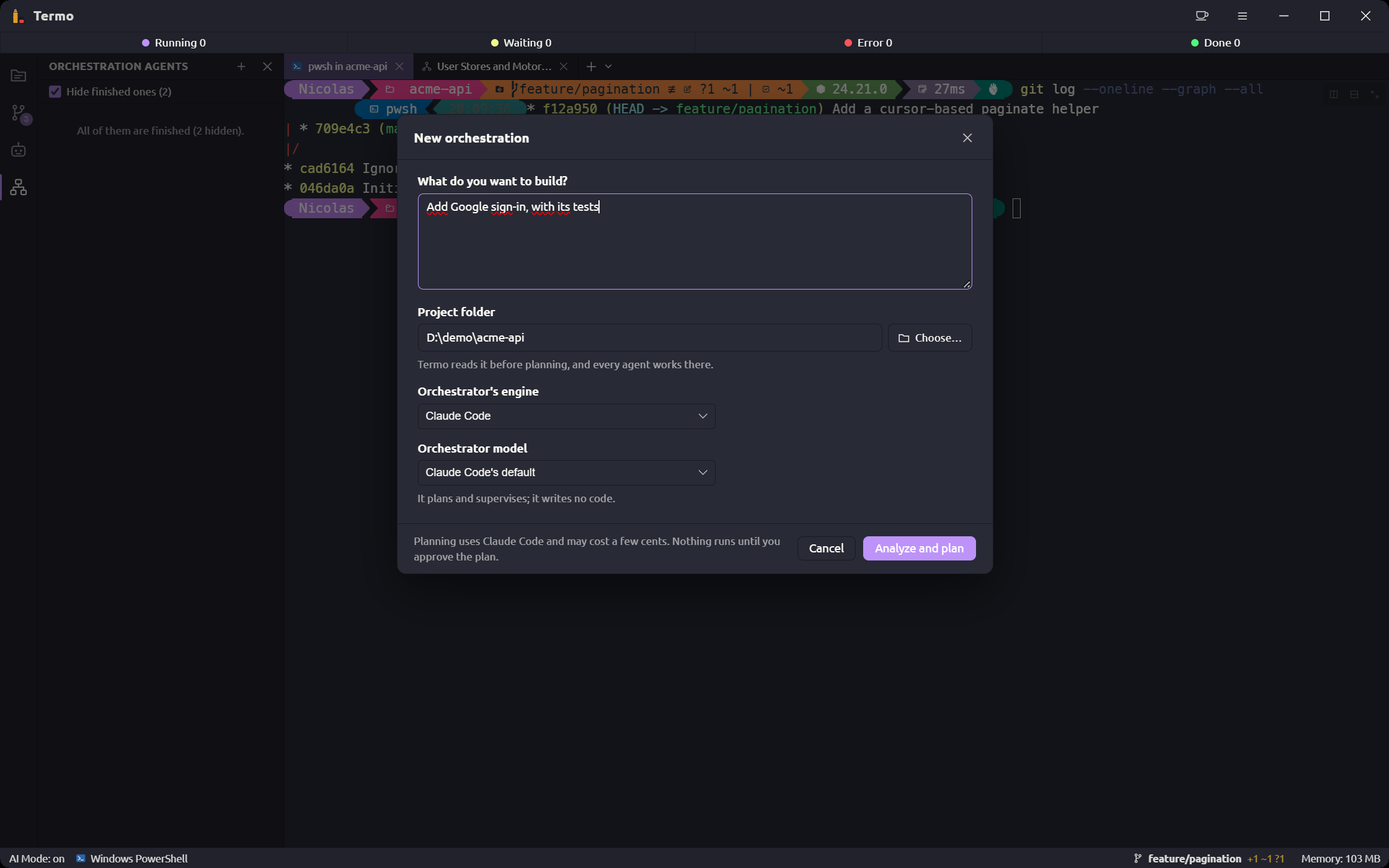
Planning uses the engine you chose and may cost a few cents. You can close the window meanwhile: the plan shows up in the panel when it is ready.
The orchestrator's questions
Before planning, the orchestrator may want to clear up a few things. Answer what you know and click Build the plan: whatever you leave blank, it decides. Skip and plan skips the questions. With When to ask you set to Never, it plans without asking.
Review the plan
The plan arrives in the Plan to review state.
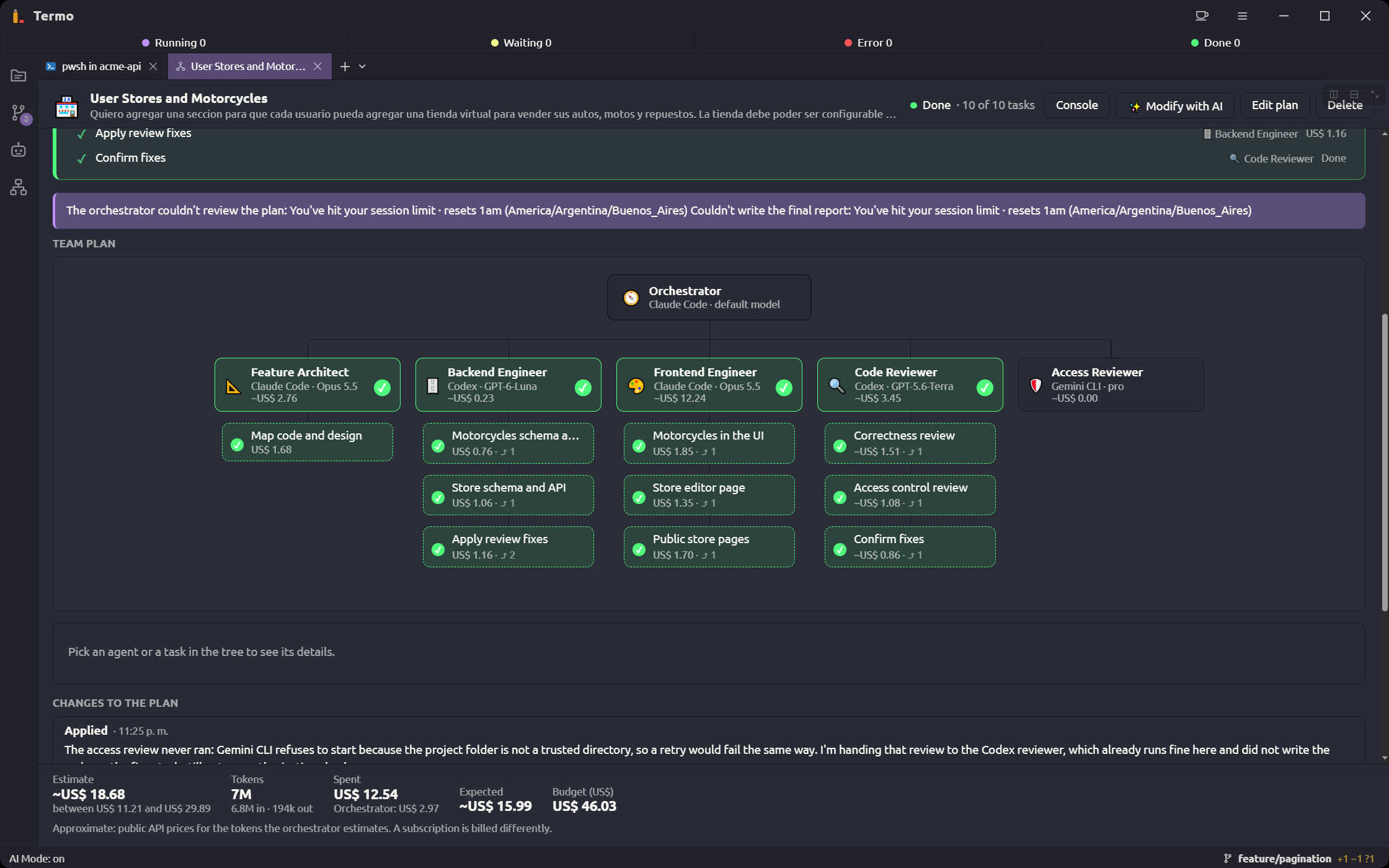
- Strategies: when there is more than one way to go about it, the orchestrator proposes them and marks the Recommended one.
- Team plan: the tree with the orchestrator, each agent and its tasks. Click an agent or a task to see its details.
- Estimate: the approximate cost, worked out from public API prices. A subscription is billed differently.
- Budget (US$): the spending cap. 0 is no limit.
An agent's details show its Specialty, Engine, Model, Why this model, its Permissions and its Instructions. A task's details show the Request, Done when and which others it Depends on.
Change the plan
- Edit plan lets you change by hand each agent's engine, model and instructions, and each task's request. You can also add or remove agents and tasks.
- Modify with AI: you write what you want to change ("add an agent that writes tests", for instance) and the orchestrator gives you the plan back with the changes to review.
Nothing is saved until you approve or save it.
Approve
When you are happy with the plan, click Approve and run.
While it runs
The panel shows the progress (N of M tasks) and, on each agent, what it is doing right now.
- Console shows what each agent did, and lets you filter by agent.
- Spent and Expected compare the actual cost with the estimate.
- Stop cuts the orchestration short. Resume carries it on.
Questions from agents
An agent may need a decision from you. The question shows in the plan, the agent's box reads Waiting for your answer, and you get a notification if Notify when it needs your input is on (Preferences → AI Mode). The ? on the panels bar and the agents item on the status bar also tell you something is waiting. Write your answer and send it with Ctrl+Enter. If you do not answer within 25 minutes, the agent decides on its own.
Never answer with keys, passwords or tokens: the answer reaches the agent and is saved.
When agents ask you
When to ask you sets how often the agents stop to ask you something:
| Option | What the agents do |
|---|---|
| Never | They decide alone and say in their answer what they assumed. There are no questions before planning either. Good for leaving it running while you're away. |
| Only when essential | They only ask about decisions that are yours and change the result: one approach or another, the scope, what to do with what already exists. |
| When in doubt | They ask when there's more than one reasonable way and the choice changes something you'll notice. They decide internal details alone. |
You choose it when you create the orchestration, and you can change it next to Budget (US$) before approving or while it runs. A change applies to the tasks that start after it. The value each new orchestration starts with is set in Preferences → AI Mode → Agents → Orchestrations → When their agents ask you.
Read-only folders
The agents work in the orchestration's folder and, by default, can't read outside it. To let them look at something else (another repository to follow, shared docs), add it under Read-only folders: in the new orchestration's form, below its folder, or later below Budget (US$). Add folder picks one, and the × on each removes it. You can change them before approving or while it runs; a change applies to the tasks that start after it.
The agents are told about those folders and can read them, but not change them. How far that goes depends on the agent's engine:
| Engine | Gets the folders |
|---|---|
| Claude Code, Gemini CLI | Yes, and their tools that edit files are blocked there |
| Codex | Yes: it can already read anywhere, and only writes in the orchestration's folder |
| Copilot CLI | Only agents that just read: its rules can't block writing in a folder |
| Grok | No |
An agent allowed to run commands has the whole terminal, so it could still write to them from there.
Changes to the plan
If a task fails or something new comes up, the orchestrator replans: it can add an agent or a task, move a task to another agent, switch a model, remove a task or retry it.
Small changes apply on their own and are logged under Changes to the plan. Three cases stop and wait for your approval:
| Reason | What it means |
|---|---|
| Goes over the approved budget | With the change, the plan would cost more than the cap |
| Asks for more permissions than approved | An agent would need to do more than you approved |
| The plan has changed many times already | You should look at it before it goes on |
In those cases you choose Approve the change or Reject.
States
| State | What it means |
|---|---|
| Plan to review | It waits for you to approve it |
| Running | The agents are working |
| Waiting for your approval | There is a change to the plan for you to decide |
| Paused over budget | It reached the cap; raise it and resume |
| Done | Every task was done |
| Failed | It could not finish |
| Stopped | You stopped it |
The result
When it finishes, the orchestrator writes a report:
- whether the goal was met (Goal met, Partly met or Not met),
- how many tasks were done, the Total cost and the Duration,
- What changed, Issues and Next steps,
- the result of Each task.
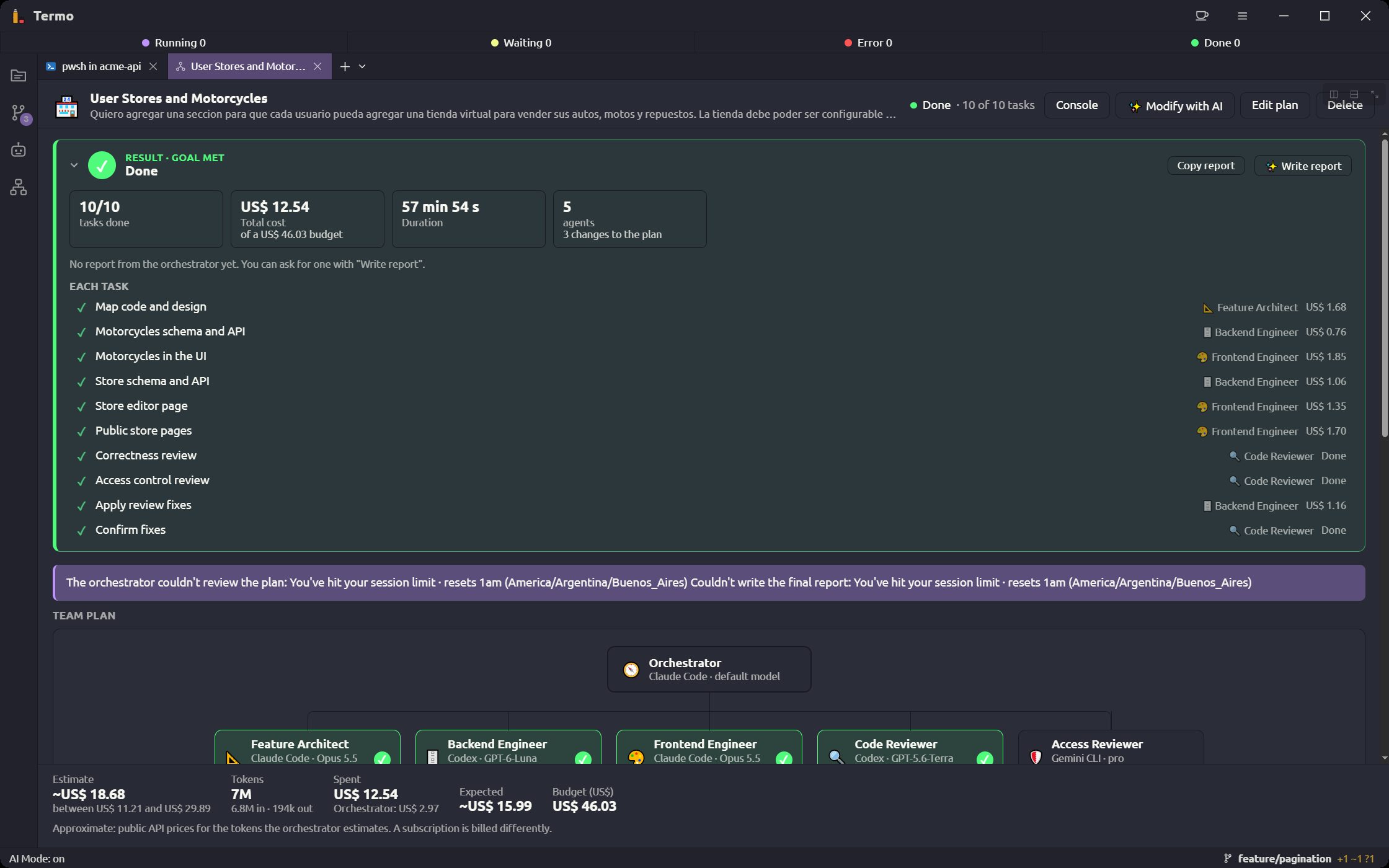
Copy report leaves it ready to paste. If there is no report yet, Write report asks the orchestrator for one.
From a console
You can also start an orchestration from the Claude Code, Codex, Gemini CLI or Copilot CLI console you are working in. Turn on Preferences → AI Mode → Agents → From consoles → Plan and run orchestrations, then open the console. A console that was already open does not get the option.
Then ask for it in the conversation, for example "set up a team to migrate the login to OAuth in this folder":
- The console starts planning it. Planning takes a few minutes and runs in the background: the Orchestration panel shows it as Planning, asked for from a console…, and the console waits for the plan. When it's ready, the console shows you the strategies, the agents, and what each strategy is expected to cost. The draft also appears in the Orchestration panel, where you can review or change it.
- Once you agree, the console runs it with the strategy and budget you chose, and waits.
- Questions from its agents and changes that need your approval come back to the console. You can answer them there or in the panel; the first answer counts. Its agents ask as often as your default in Preferences says, unless you tell the console otherwise ("don't ask me anything").
- When it ends, the console shows the orchestrator's report.
The progress shows live in the Orchestration panel the whole time. The console asks you to confirm each planning and each run, since both are paid. A console waits up to about 50 minutes at a time; after that, ask it for the status to keep waiting.
Tidy the panel
Hide finished ones takes the orchestrations that already finished off the panel. Delete removes an orchestration with its team and its history.