
Local agents
A local agent does a task on its own: reviewing changes, tidying files, writing a summary. It runs on your computer, with the CLIs you already have installed and your same account, when you ask or when something happens.
They need AI Mode on and at least one agent installed (Claude Code, Codex, Gemini CLI, Copilot CLI or Grok).
Agents run while Termo is open, unless you keep them running with Termo closed. For one to run with your computer off, see Take it to GitHub Actions.
The agents panel
Open it with Ctrl+Shift+G (⌘⇧G on macOS) or with the Local agents button on the panels bar. The button shows how many agents are running.
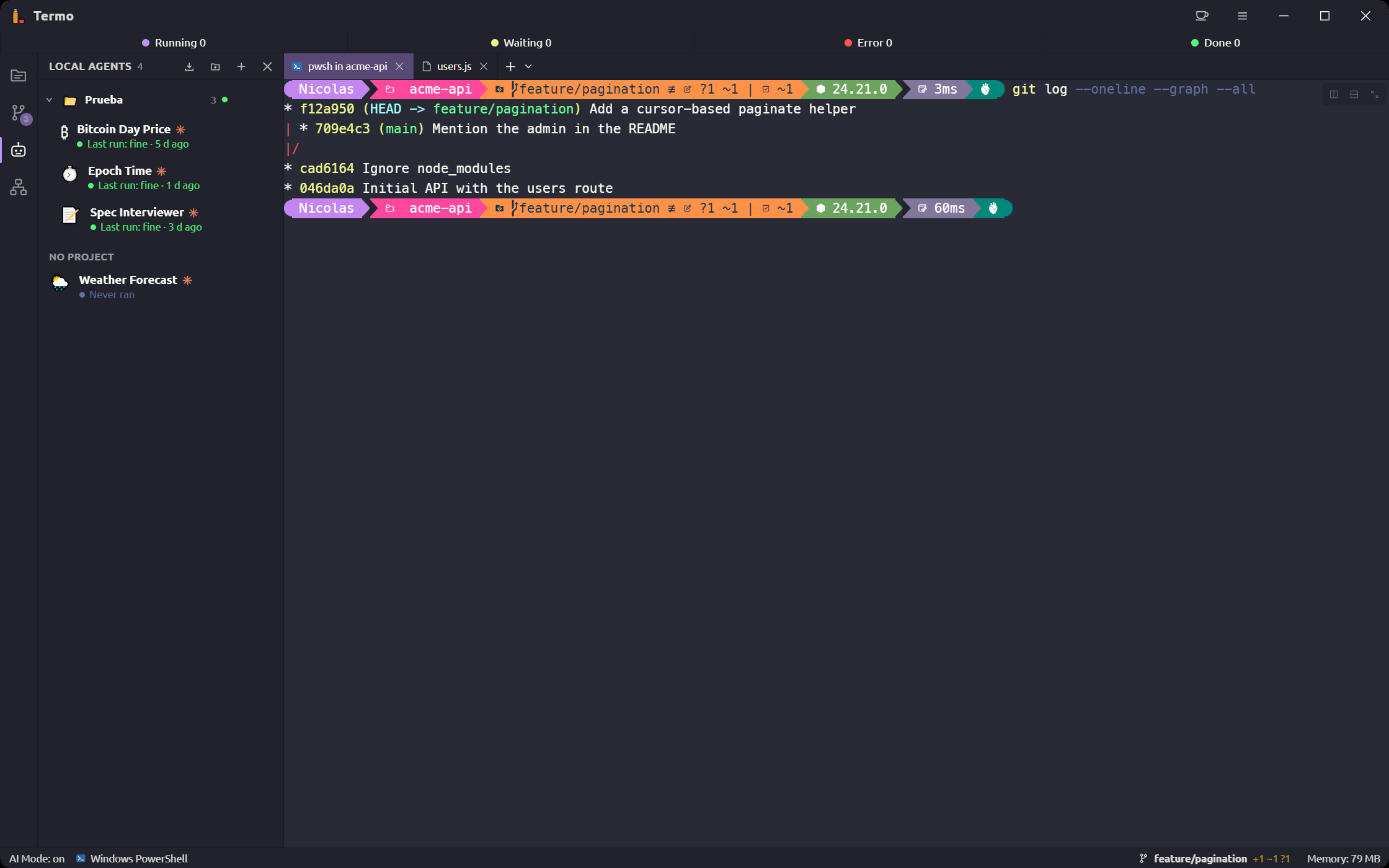
Each agent shows its state (Running…, Waiting for your answer, Paused, how its last run ended) and when it runs next.
Create an agent
Click New agent. A wizard guides you through seven steps; Ctrl+Enter goes to the next one and Esc cancels.
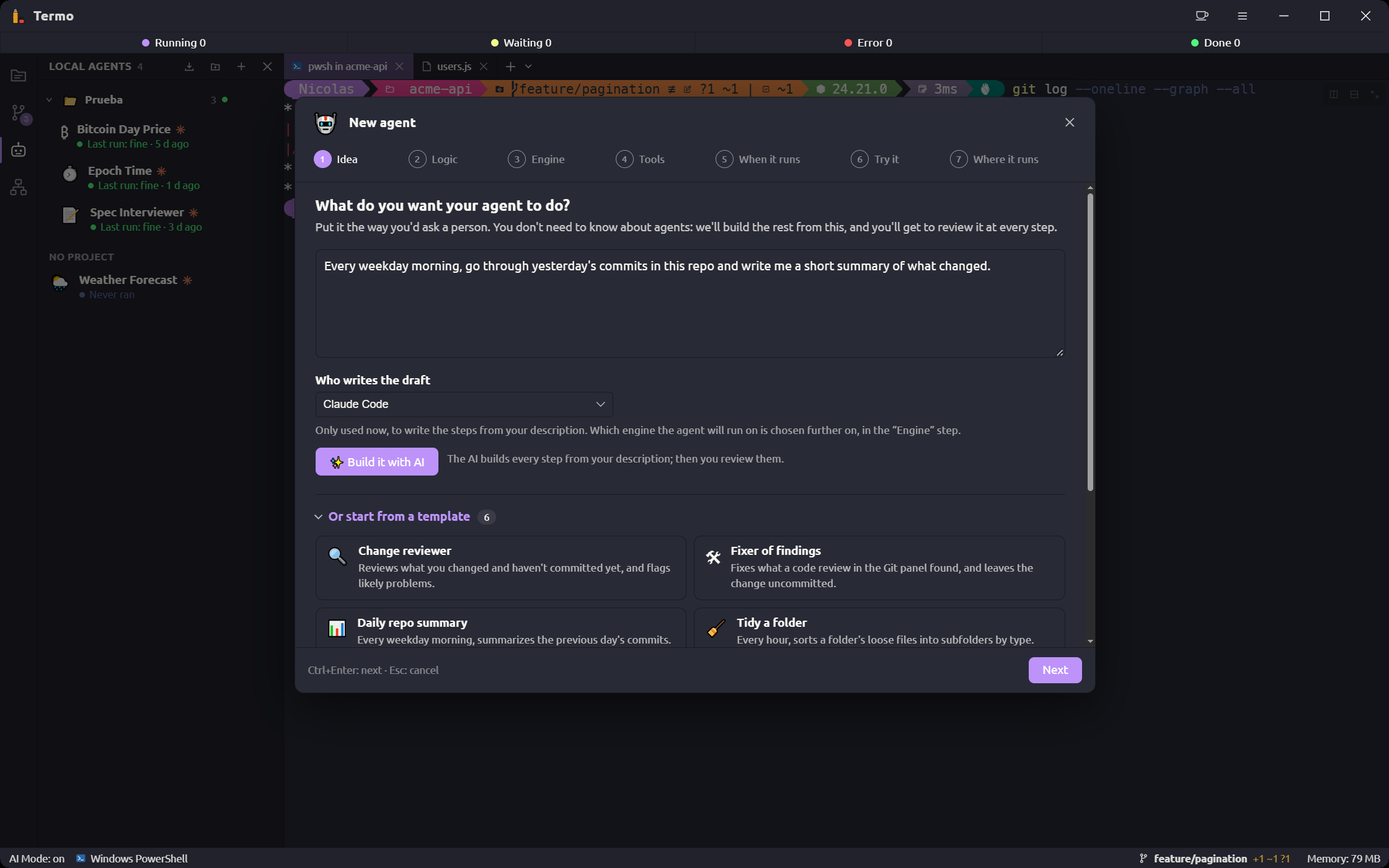
1. Idea
Say what you want it to do, the way you would ask a person. Then choose:
- Build it with AI: the AI fills in every step from your description, and you review them.
- Or start from a template:
| Template | What it does |
|---|---|
| Change reviewer | Reviews what you changed and have not committed yet |
| Daily repo summary | Every weekday morning, summarizes the previous day's commits |
| Tidy a folder | Every hour, sorts loose files into subfolders by type |
| Fixer of findings | Fixes what a code review in the Git panel found |
| Keep the docs current | Checks that the README matches the project, and updates it |
| Research a topic | Searches the web and writes a summary with sources |
2. Logic
What the agent knows before it starts:
- Name.
- What it does on each run: the concrete request it gets every time.
- How it does it: the steps it follows, the rules it keeps, what it must never do and how it knows it is done. Optional, but it helps a lot.
3. Engine
Three decisions:
- Engine: which program does the work (Claude Code, Codex, Gemini CLI, Copilot CLI or Grok) and with which Model.
- How much it can do on its own:
| Level | What it can do |
|---|---|
| Only look | Reads and searches files and looks things up in git. Changes nothing |
| Edit files | Can also create and modify files in its folder |
| Run commands | Can also run commands in the terminal |
- Working folder: one of your projects, or a folder of its own, kept apart.
Nobody approves anything while it runs: whatever is not allowed here, it cannot do. Give it the lowest level that is enough.
This step also holds the Time limit and, under In the Git panel, whether the agent is a Reviewer of changes or a Fixer of findings for code reviews.
4. Tools
What the agent can use beyond the basics:
- Search and read the web.
- Integrations: MCP servers that connect it to other services (GitHub, Slack, databases…). Search for one by name, or add Your own connector with a local command or a remote server's URL. Secret values are kept in the system keychain.
- Other agents: who it can ask for something or leave a message.
- Shared board: notes agents read and write between runs.
- It can ask you while it works: when it hits a decision that is yours to make, it asks and waits. Only in the runs you start.
- Available from consoles: see Use an agent from a console.
5. When it runs
You can always run it by hand. You can also turn on what makes it start on its own:
| Trigger | When it starts |
|---|---|
| Run on a schedule | Every so many minutes, or at a set time on the days you pick |
| When a folder changes | Shortly after a file there is added or modified |
| On every commit or push (git hook) | Termo adds a hook to the repository; the agent is told which commit it was |
| When something calls a URL (webhook) | A local address that scripts on your computer can call |
| When another agent finishes | It gets the other one's result as context; good for building chains |
The webhook only listens on your computer and asks for a token, which works like a password. The wizard shows you the exact call.
6. Try it
Try it now runs the agent once and shows what it does. If something does not come out as expected, go back to the earlier steps and adjust it.
7. Where it runs
Your agent always runs In Termo. Here you can also take it to GitHub Actions, and leave it Active or paused.
Click Create agent.
Run an agent and see what it did
- Run now starts it. Stop cuts it short.
- View runs opens the history, with how each one started (by hand, scheduled, git, webhook…) and its result.
When Termo is not in view, a run tells you how it ended with a notification, following the switches in Preferences → AI Mode → Notifications:
- A run you started (Run now, the command palette, a console) notifies when it finishes or fails.
- A run that started on its own (a schedule, a folder, git, the webhook, another agent) notifies only when it fails, and only the first time: an agent that keeps failing doesn’t notify on every run, until it works again. When it goes well, it’s in its history.
Under More options are Edit, Duplicate, Export…, Pause / Resume and Delete. A paused agent does not run on its own, but you can still run it by hand.
You can also run them from the command palette: Run agent: …
When an agent asks you
If the agent can ask you, the question shows in its run and arrives as a notification. Answer and send with Ctrl+Enter. If you do not answer in time, it decides alone and says what it assumed.
When a run fails
Termo shows Why the last run failed: the kind of error (authentication, usage limit, out of credit, service overloaded, no connection, out of time…), what to do, and the technical details. Copy diagnosis leaves them ready to paste.
Keep agents running with Termo closed
Turn on Preferences → AI Mode → Agents → Keep agents running when Termo closes, and the agents run in a process of their own that keeps going when you close Termo:
- An agent on a schedule runs at its time, one that watches a folder keeps watching it, and git hooks, the webhook and other agents' messages keep setting them off.
- A run under way when you close Termo carries on, and its result is in its history when you open Termo again.
- You get the same notifications as with Termo open (see Run an agent and see what it did): when it asks you something, when it fails, and when a run you started finishes. Clicking one opens Termo on that run.
While Termo is open, everything works as before: the panel, the runs as they happen, the questions. Under the option, Preferences shows whether that process is running and what it has on its hands, such as 2 on a schedule · 1 watching a folder.
Restarting the computer ends that process, until you open Termo again. To have it start when you sign in, with no Termo opened, turn on Start them when you sign in too.
The option can't be switched while agents are at work: a run can't move from one place to the other. Wait for them to finish.
The quit prompt says it as well: with the option on, the agents at work show under Keep running in the background; with it off, they're among what quitting cuts short.
With remote access on, you can also see your agents from your phone, run them, answer them and, if you allow it, create and edit them.
Projects
A project groups agents that work together.
Click New project and choose how to start:
- Empty: a folder to group agents in.
- From a template: a team built for common cases.
| Template | What it does |
|---|---|
| Change pipeline | Reviews the changes, runs the tests and, if they pass, updates the documentation |
| Research | Researches a topic on the web, writes a report and checks its facts |
| Repo upkeep | Every morning checks dependencies, runs the tests and logs the changes |
| Weekly report | On Mondays gathers what happened in the repo and writes a summary |
- With AI: you say what the team has to achieve and the AI proposes the agents and how they connect.
A team created from a template or with AI arrives paused: nothing runs until you turn it on. First, Review the team shows you the diagram, why it was built that way and what is worth a look.
Set up a project
- Working folder: where the project's new agents start.
- Isolated team: its agents only talk to each other and use a board of their own.
- Entry agent: the one that starts when you run the project.
- Runs a day: a cap across all its agents; 0 is no limit.
The project view
Open its panel shows the project with five tabs:
| Tab | What it shows |
|---|---|
| Overview | The team, today's runs and the cost today and over the last 7 days |
| Activity | The runs of all its agents |
| Board | The team's shared notes |
| Improve | The AI looks at the latest runs and proposes changes; nothing is applied without your OK |
| Versions | Each change saves a version, and you can go back to an earlier one |
Run starts the entry agent. Rehearse runs the whole team as "only look": they say what they would do, without changing anything.
Use an agent from a console
An agent marked Available from consoles (Tools step) can be used from the Claude Code, Codex, Gemini CLI and Copilot CLI consoles you open in Termo. You ask it for something and wait for its answer without leaving the conversation.
- It handles each request within its role, with its own permissions and in its own folder.
- The console asks you to confirm each request first, since each one is a paid run.
- If the agent runs commands, that has to be allowed separately with Allow it even though it runs commands.
To use them in consoles opened outside Termo too (VS Code, another terminal), turn on Preferences → AI Mode → Agents → Also in consoles opened outside Termo. For Gemini CLI and Grok, that option is required: they only take the agents from their own settings.
Share agents
- Export… saves an agent or a project to a file. Its secrets' values are not exported.
- Import agents loads them from a file. They arrive paused: review them and turn them on with ⋯ → Resume.
On import, Termo tells you whether an agent can run commands, what it connects to and which program it starts.
Take it to GitHub Actions
In the Where it runs step, you can make the agent run on GitHub's servers, even while your computer is off. For now, only for Claude Code agents.
Termo guides you:
- You create a token so GitHub can use your Claude account.
- You add the secrets to the GitHub repository.
- Write the workflow puts it in the repository.
- You commit and push.
- You run it from GitHub's Actions tab.
On GitHub it only runs on its schedule or by hand: watching a folder, git hooks, the webhook and working with other agents do not apply there.
About safety
- An agent that reads text from outside (a commit, a webhook, a web page or another agent) and also runs commands can receive orders hidden in that text. If it does not need to run commands, pick Edit files or Only look.
- Give it only the integrations it needs.
- An agent that only looks cannot use another with more permissions, unless you allow it.
- Never answer an agent's question with keys, passwords or tokens: the answer is saved.