
The console
Each console tab runs a real shell from your system. Termo does not replace it: it opens it, draws what it prints and passes along what you type.
Which consoles you can open
Termo detects the ones you have installed:
| System | Consoles |
|---|---|
| Windows | PowerShell 7, Windows PowerShell, CMD, Git Bash and your WSL distributions |
| macOS and Linux | Your login shell and the ones listed in /etc/shells (zsh, bash…) |
You pick them from the ˅ arrow next to each tile's +.
Change the default console
In Preferences → Console → Default console, pick the one you want + and Ctrl+T to open from Console for new tabs.
Open in another folder
In the ˅ menu, click the folder icon on a console's row, or Shift+click it. A folder picker opens, which you can walk with the keyboard.
Copy and paste
| Action | Windows and Linux | macOS |
|---|---|---|
| Copy | Ctrl+Shift+C |
⌘C |
| Paste | Ctrl+Shift+V |
⌘V |
| Select all | Ctrl+Shift+E |
⌘A |
Outside macOS they take Shift because Ctrl+C and Ctrl+V belong to the shell. Windows has an exception, as in Windows Terminal:
Ctrl+Ccopies when text is selected, and lets go of the selection. With nothing selected, it still interrupts the program.Ctrl+Vpastes.
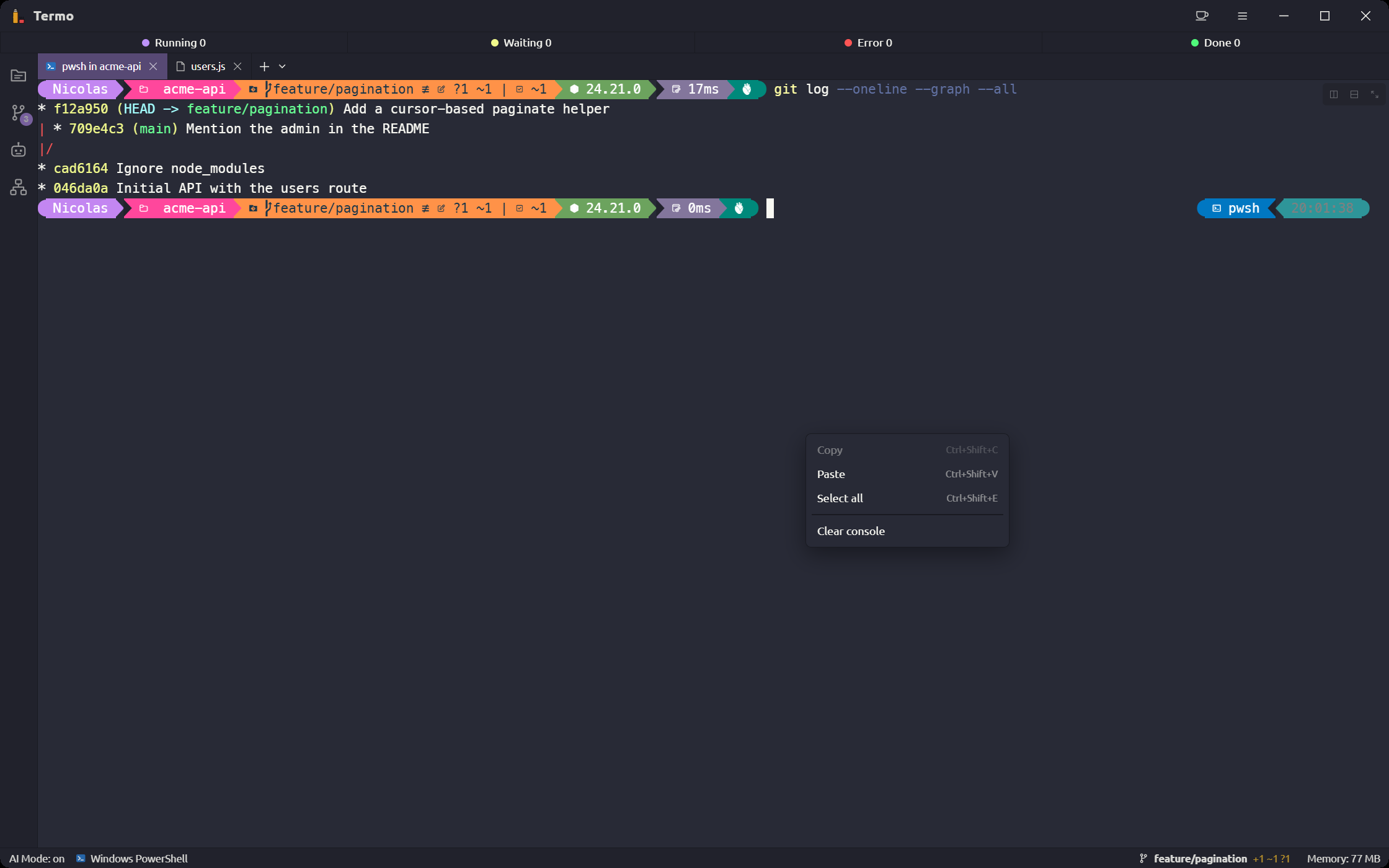
The same actions are in the console's right-click menu, along with Clear console, and in the ≡ menu → Edit.
Links
Click a link in a console to open it in your browser: the ones the shell prints, and the ones a program marks as links (like ls --hyperlink or an agent's). Only web and mail links open; a link to a file on the computer doesn't (except a Markdown file's, see below).
They open in the system's default browser. To use another one, pick it in Preferences → General → Links → Open links with: the list has the browsers installed on the computer, and Other… lets you choose any program. Try it opens a page with the one chosen. Every link in Termo opens there too, not only the consoles'.
Markdown files
When a console prints the path of a Markdown file (.md, .markdown or .mdx), like the plan or the notes an agent just wrote, the path is underlined and, with the pointer over it, a hint says Ctrl + click to open. Ctrl+click it (⌘+click on macOS) and the file opens rendered in a tile to the right of the console's, to read it: headings, lists, tables, task lists and code blocks, in the console's theme.
- A relative path (
docs/plan.md) is read from the folder the agent is working in, or else the console's. Only paths to a file that exists on this computer are underlined; another computer's console has none. - The first file splits the console's tile and opens on the right; the next ones open as tabs in that same tile.
- The tab follows the file: when the agent writes it again, what you see updates without losing your place.
- Links in the file work: a web link opens in your browser, a link to a heading jumps to it, and a link to another Markdown file opens it in its own tab.
- To change the file, Open in the editor, at the top of the tab, opens it in the editor.
- HTML written in the file shows as text, and only images from the web are shown.
Output highlighting
Termo colors what the shell prints so it reads better: IP addresses, URLs, paths, sizes, times and words such as error, warning or done. It does not touch what you type.
To turn it off, untick Preferences → Console → Highlight IPs, URLs, paths, errors..., or use Turn off output highlighting in the palette.
Per-system options
Preferences has one section per operating system (Windows, macOS, Linux). Only the one for the system you are on can be edited. They all affect only new sessions opened from Termo, and none of them changes your profile files.
Windows
- Completion menu (Tab, Tab): in PowerShell,
Tabcompletes as usual and a secondTabopens a menu to choose from. - UTF-8 consoles (PowerShell and CMD): programs that write UTF-8 (Python, Node tools, git) show accents and emoji correctly. Turn it off if an old program expects the classic code page.
macOS and Linux
- Completion menu (Tab, Tab): in zsh,
Tabshows the options and a secondTabopens a menu you move through with the arrow keys. It does not change your~/.zshrc. - Colored prompt (user, folder and git branch): for bash. If your
~/.bashrcdefines its own prompt, that one is used. On macOS it also enables colors inls.
Prompt
Termo can give your consoles a prompt with themes, using Oh My Posh or Starship. It installs and turns on either one without touching your configuration.
You can only use one at a time: both replace the shell's prompt, so they can't share a session.
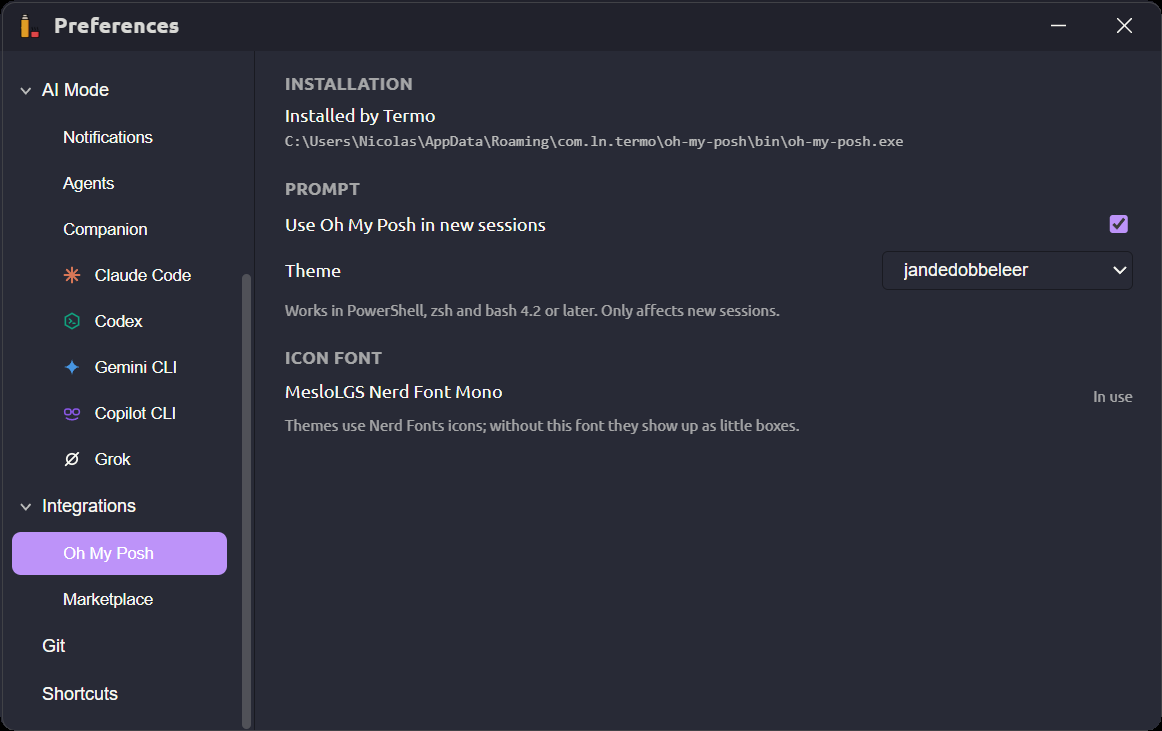
- Open Preferences → Integrations → Prompt.
- In Console prompt, pick Oh My Posh or Starship. None (each shell's own) turns them off.
- If it is not installed, click Install. Termo downloads the official binary into its own folder; it does not change your PATH or your config files. If you already have it installed, Termo uses that one.
- Pick a Theme (Oh My Posh) or a Preset (Starship).
- Under Icon font, click Install and use. Themes use Nerd Fonts icons; without that font they show up as little boxes.
- Open a new tab to see it.
Oh My Posh
It works in PowerShell, zsh and bash 4.2 or later. The bash that ships with macOS (3.2) is not supported: pick zsh as your console.
Starship
It works in PowerShell, zsh and bash, including the bash 3.2 that ships with macOS. On Windows, Git Bash is not supported.
If you already have your own starship.toml, turn on Use my own starship.toml: Starship then reads ~/.config/starship.toml (or the file STARSHIP_CONFIG points to) instead of the preset.
Keep the computer awake
The cup in the title bar stops the computer from sleeping on its own while Termo is open. It is useful for leaving a long process or an agent at work.
- Click turns it on or off.
- Right-click opens the options: for how long (some minutes, some hours or Until I turn it off) and Keep the screen on too.
Closing the lid or choosing Sleep by hand still works. The button can be hidden in Preferences → General → Title bar.
Consoles that keep running
With Preferences → Console → Keep consoles running when Termo closes, new consoles outlive their window and Termo itself, and come back when you open it again. They can also be used from another computer or your phone, from the antenna in the title bar. See Consoles that keep running and Remote access.
Below it, Save memory in collapsed groups puts the tabs of a tab group collapsed for a while to sleep, or discards their idle consoles, until you open them again. See Tab groups.
How much memory a console uses
The status bar shows, on the right, the memory used by the active console and the processes running in it. To see every tab together, open Diagnostics.