
Remote access
Remote access lets another computer on your Tailscale tailnet, or your phone's browser, show and use the consoles open in Termo on this one. It's how you check on an agent from the couch, answer it, and let it carry on.
It needs Tailscale installed and signed in, on both devices.
Every console open on this computer can be shown, including the ones that were already open when you turned remote access on. They show for as long as Termo is open here. To keep showing them after you close Termo, turn on Consoles that keep running too: those keep running, and can be shown, with Termo closed.
Termo doesn't open anything to the internet: it only listens on this computer's Tailscale address, where only devices on your tailnet can reach it.
The remote access button
The antenna in the title bar, left of the cup, shows how remote access stands at a glance:
- Dimmed: remote access is off, or Tailscale isn't connected. A slash through the antenna means Tailscale isn't connected on this computer.
- A green dot: remote access is on and nobody is connected.
- A number: how many are connected from the tailnet now.
- An orange dot: someone is waiting for an answer to connect.
Click it for everything in one place:
- Tailscale: a pill says whether this computer is on the tailnet: green Connected (with the account, and this computer's name and address below), amber Needs signing in or Connecting…, red Disconnected or Not answering, grey Not installed. The power button next to it connects (Connect, or Sign in, which opens Tailscale's sign-in page in your browser) or disconnects, spinning until Tailscale gets there (Connecting…, Disconnecting…). Disconnecting takes the whole computer off the tailnet, not just Termo. Without Tailscale installed, the button next to the pill (Download Tailscale) takes you to its site. On Linux, Tailscale may only let you connect or disconnect after running
sudo tailscale set --operator=$USERonce; the panel says so when that's the case. - Allow connections from the tailnet: turns remote access on or off.
- Open from your phone or another computer: the address, with Copy, and a QR code: scan it with your phone's camera to open the page. It only holds the address.
- Waiting for an answer: Allow, Read-only or Deny, right there.
- Connected now: who, from which computer, with what access and how many consoles they're showing, and Disconnect everyone.
- Connect to another computer… and Remote access settings…, which opens the section in Preferences.
The button can be hidden in Preferences → General → Title bar.
Turn it on
- Click the antenna in the title bar, or open Preferences → Console → Remote access.
- Tick Allow connections from the tailnet.
The first time, the list of who can connect gets you: your Tailscale account, from any of your computers. The section also shows this computer's name and address on the tailnet and, under Open from your phone or another computer, the address to open from a browser, with a Copy button.
Who can connect
Tailscale tells Termo who is connecting. Only those under Who can connect get in, each with:
- Full access: they see the consoles and type into them, can resize or close them (closing one closes its tab on this computer too), and can open new ones from the phone (see Open a console from the phone).
- Read-only: they see the consoles, and nothing they type reaches them.
Change one's access from the list, or Remove them.
No one can change Termo's settings from another computer. New consoles open only through Termo itself, as tabs on this computer, and only for those with full access; agents are created or changed from there only if you allow it (see Agents).
Someone not on the list
They are turned away, and their request appears under Waiting for an answer. Termo also shows a notification; clicking it opens this section. Choose Allow (full access from that computer), Read-only or Deny.
Agents
The page also shows your local agents (see Your agents from the phone). Anyone let in sees them; those with full access can also run them, stop them and answer what they ask.
Creating, changing and deleting agents from there is off until you turn on Allow creating and editing agents from there, under Agents in the same section. An agent's task runs on this computer, with the permissions you give it, so it's up to you whether anyone with full access can write one.
Who is connected now
While someone is connected, the status bar shows N connected from the tailnet; hover it to see who, and click it to open the settings. Connected now in the same section lists them, each with the number of consoles they're showing.
Disconnect everyone ends every connection. Turning remote access off, or removing someone from the list, cuts them off right away too.
Connect from another computer with Termo
- In a tile's ˅ menu, choose Another computer….
- Pick the computer from Computers on your tailnet.
- Pick the console. It opens in a new tab, named after the computer.
Closing that tab only stops showing the console here: it keeps running on the other computer.
Connect from your phone
Open the address shown in Preferences → Console → Remote access in the browser of any other device on your tailnet (not this computer's own: on it, the consoles are in Termo), for example http://desktop:47830: this computer's name on the tailnet. If a device doesn't find it by that name (one that doesn't use Tailscale's DNS), use the full address shown below it, like http://desktop.tail1234.ts.net:47830.
To change the name, rename this computer in Tailscale's admin console (Machines, then Edit machine name…). Termo picks up the new name within a minute.
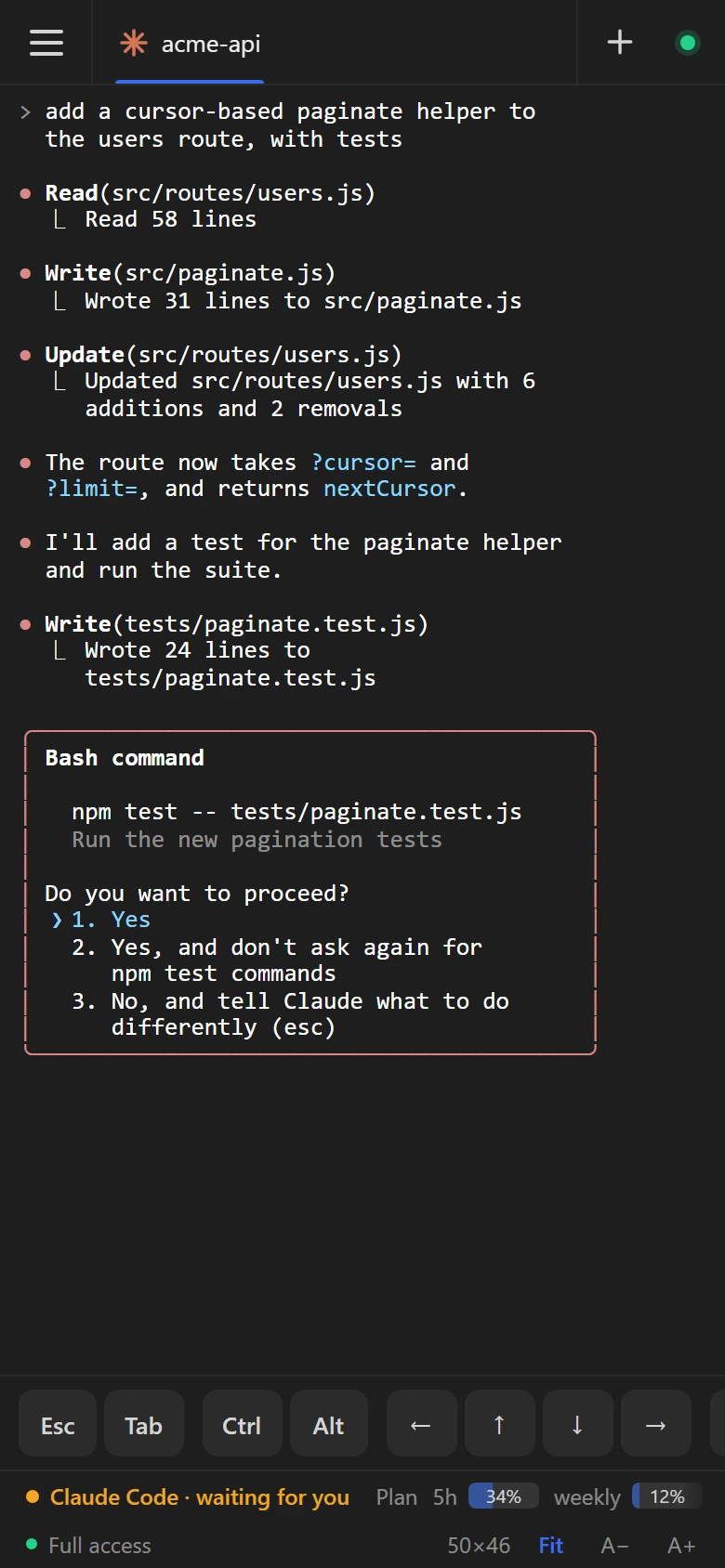
The page looks like Termo on that computer: same theme, same console font.
- Each console open on this computer is a tab. ☰ opens the list of them all over the console, with their folder and how long they've been open; tap one to open it, or ☰ again to close the list. With full access, ✕ next to a console closes it, after asking: its tab on the computer closes too, along with whatever runs in it, as if you closed it there.
- Prompt icons, like Oh My Posh's, show even though the phone has no Nerd Font: the page fetches their symbols from the internet the first time.
- The console fits the screen: it takes the phone's size when you open it, and follows it when you turn the phone or the keyboard comes up. A console has one size wherever it's shown, so on the computer it shows at that size too. It gets its own size back when you leave it on the phone, or as soon as you go back to its tab on the computer (or click into it, or type in it). The phone then shows it at the computer's size until you type in it or tap it, which takes it back. Tap Fit in the status bar to turn this off: the console then keeps its size and you scroll to see all of it.
- Drag up or down on the console to scroll back through what it printed; flick to go faster. In a full-screen program, the drag scrolls the program, as a mouse wheel would.
- Web addresses in the console are links, underlined: tap one to open it in a new tab, or press and hold it for your phone's menu for links (to copy the address, for example). On a computer's browser, hover over one and click it. Addresses like
http://localhost:3000point to the computer, so they don't open on the phone. - A− and A+ change the text size.
- The status bar shows what Termo's does for that console: the agent in it and what it's doing (working, or waiting for you), its plan usage, context and cost, then the folder the console is in, its Git branch (with a dot when there are uncommitted changes) and the program running in it (not on Windows). On a phone these take a row of their own: swipe it sideways to see them all. The agent's details need Termo open on the computer; the folder and branch show with it closed too.
- The row of keys under the console has what a phone's keyboard lacks: Esc, Tab, Ctrl and Alt (for the next key), the arrows, Enter, ^C, PgUp, PgDn, Home and End. Type… sends a piece of text.
- If the connection drops (you locked the phone, the network changed, Termo restarted on the computer), the page connects again on its own: the dot at the top right blinks and the console stays in sight, dimmed, until it's back. While the page is out of sight it stops trying, and starts again as soon as you come back to it. If the computer turns you away, it says why and doesn't try again.
- With read-only access, the keys are hidden, the console keeps its size and the status bar says Read-only.
- On a computer's browser, with a mouse and keyboard, the page looks like the desktop app and leaves out the row of keys.
Open a console from the phone
With full access, + at the end of the tabs opens Open a console, at the bottom of the ☰ list:
- Pick the folder to open it in. It starts as the folder of the console you were looking at. Tap it to choose another in Choose folder, the same browser Termo uses to open an agent in another folder:
- Places lists home, the drives and, under Recent, the folders of the open consoles and those agents ran in lately.
- Tap a folder to go into it. The path at the top, or ‹, takes you back up.
- New folder creates one inside the folder you're in, and goes into it.
- Use … picks the folder you're in.
- Tap what to open: any shell or agent Termo's new-tab menu offers on the computer (the agents only with AI Mode on).
Termo opens it on the computer, as a new tab of the window it opened with, and the phone shows it. It's a console like any other there: it stays when the phone leaves, and you close it from either.
It needs Termo open on the computer: with only Consoles that keep running and Termo closed, the phone says so instead. Network shares can't be browsed or opened in.
Your agents from the phone
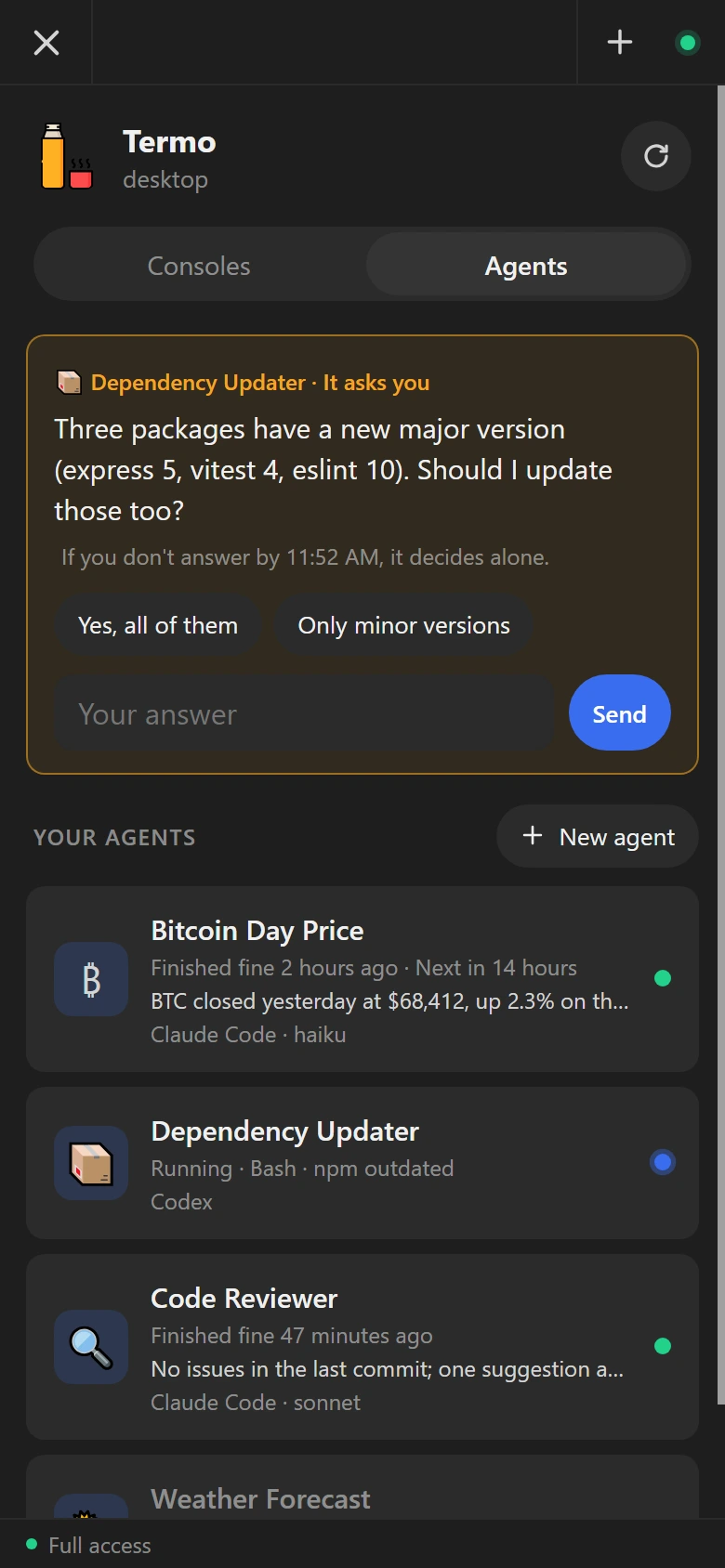
At the top of the ☰ list, Consoles and Agents switch between your consoles and your local agents. Agents lists them as the agents panel does, each with what it's doing now, how its last run went, the start of what it answered and when it runs next. A run can finish fine with the agent saying it couldn't do the task, so read the answer, not only the status. A question an agent is waiting on shows above the list, with its suggested answers and a box to write another: answering it there is the same as answering it in Termo.
Tap an agent to see it:
- Run now runs it, as running it by hand from Termo does. Add instructions for this run adds something to keep in mind just this once. While it runs, Stop stops it.
- Its engine, folder, how much it can do on its own, its schedule and what else sets it off.
- Runs: its history. Tap one to see its result and What it did, step by step; a run under way adds its steps as they happen.
With Allow creating and editing agents from there on, New agent, Edit, Duplicate, Delete and the On switch show too. The form has the everyday part of an agent: its name, engine and model, its folder (picked with Choose folder), what it does on each run, its instructions, how much it can do on its own, Search and read the web (an agent that has to look something up, like a price or the news, needs it), its schedule (every so many minutes, or at a set time on the days you pick) and, under More options, whether it's on and its time limit. Everything else (the other triggers, integrations, working with other agents, projects) is set in Termo; editing an agent that has any of it says which, and leaves it as it is.
Agents run where they always do: in Termo, or with Keep agents running when Termo closes in their own process. So running one from the phone needs either Termo open on the computer, or that option on (and Consoles that keep running, for the page to be there with Termo closed). Otherwise the page still lists them and their history, and says that nobody is running them now.
The page and the console travel inside Tailscale's encrypted connection.