
Updates
Termo updates from inside the app. It only installs versions published and signed by Termo.
Check for an update
- Open the ≡ menu → Check for updates.
- If there is a new version, Termo shows you which one.
- Click Install and restart.
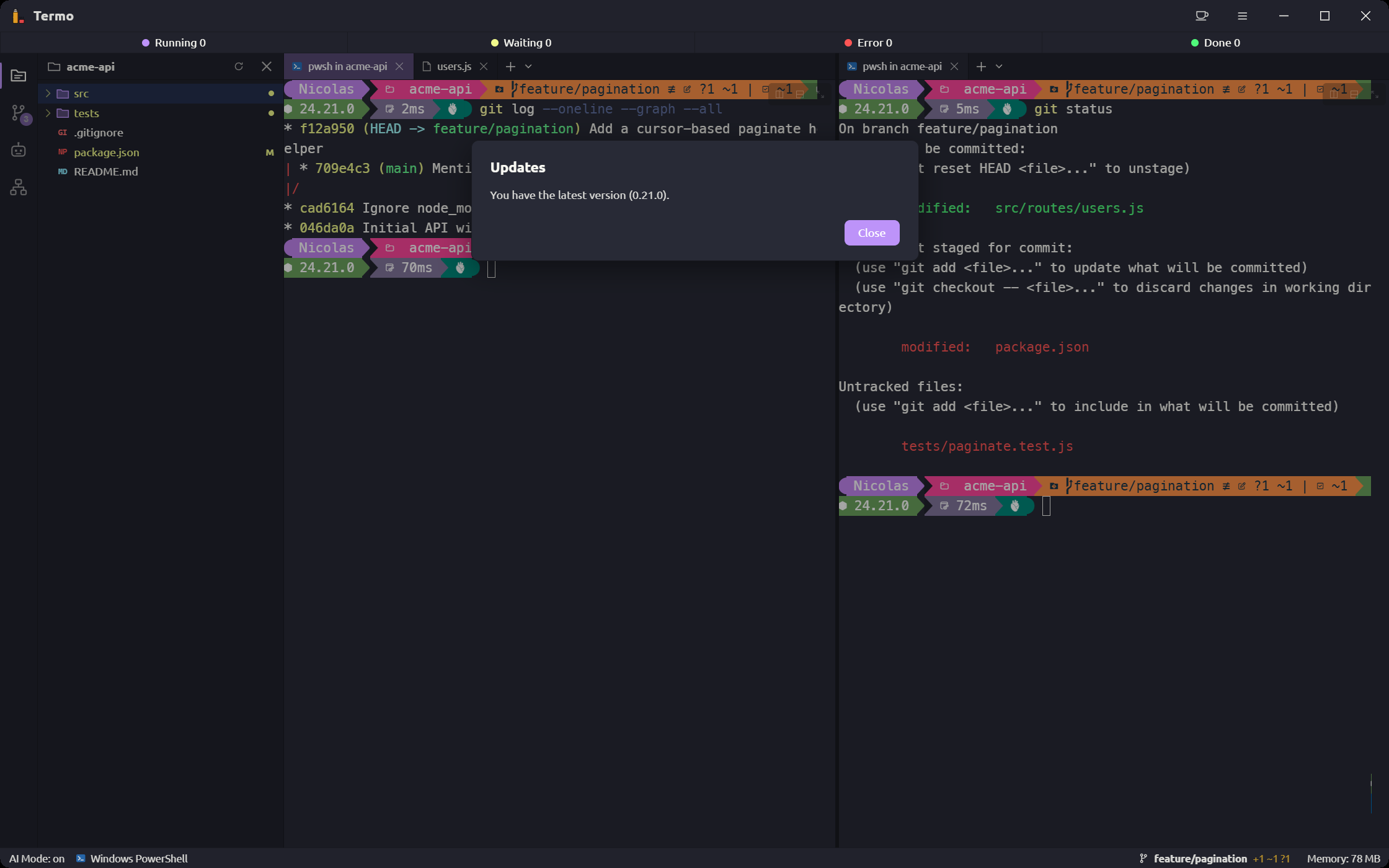
Termo downloads the update, installs it and restarts. Later leaves it for another time.
If you already have the latest version, the dialog says so.
If agents are working
Installing the update closes the consoles and stops the agents. If agents are working, Termo tells you how many before going on; you can wait for them to finish or choose Install anyway.
On Linux
If you installed Termo from the .deb or the .rpm, Linux asks for the administrator password in a separate window to finish installing.
What's new
The first time you open Termo after updating, What's new in Termo shows what changed in that version.
About Termo
The ≡ menu → About Termo shows the installed version and your system's details.
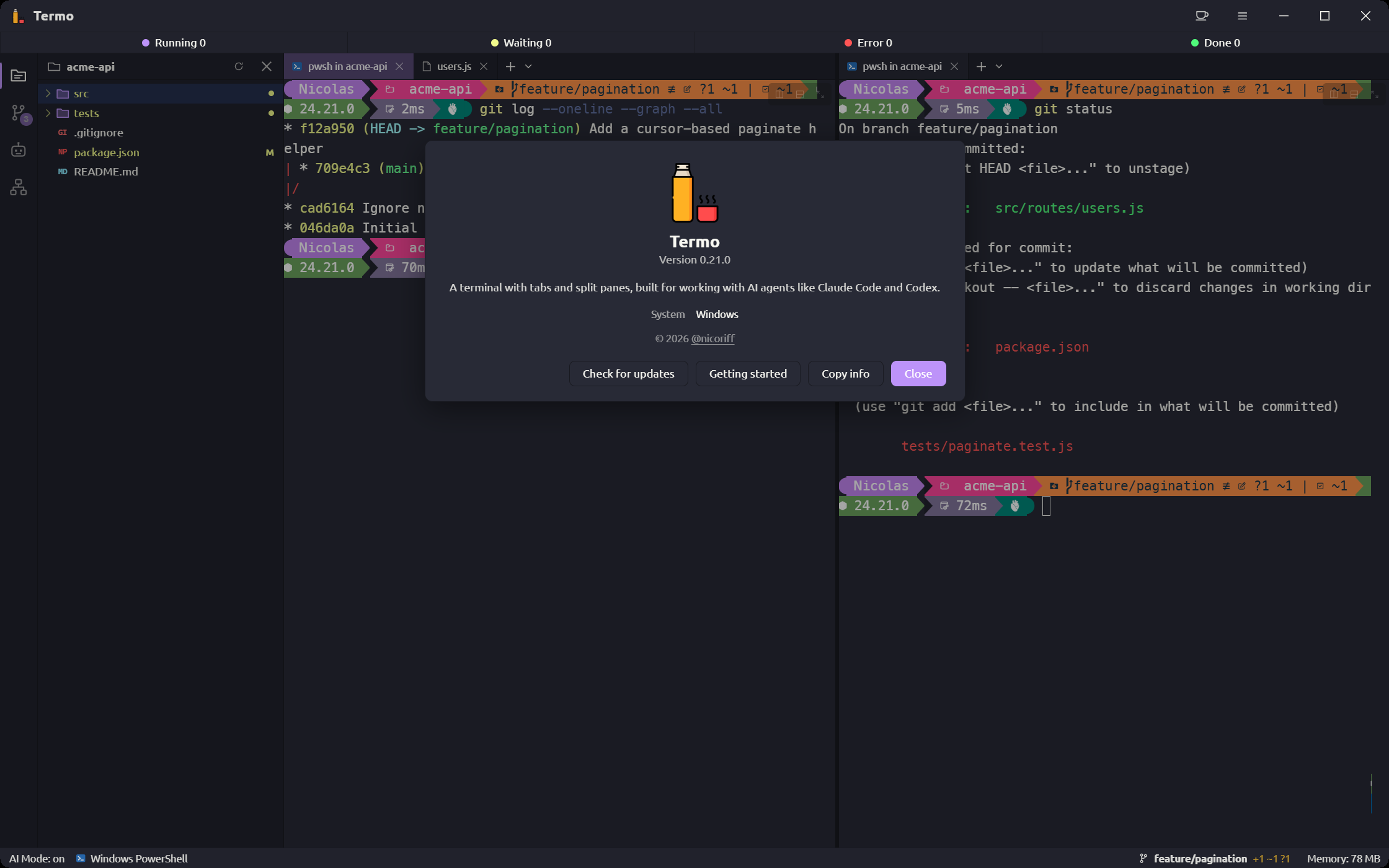
From there you can:
- Check for updates.
- Getting started: open the initial setup again.
- Copy info: copies the version and the system details, to paste when reporting a problem.
Every version
The installers for each version are at github.com/nicoriff/termo-releases.